YellowPencil is a WordPress visual CSS editor for fine-tuning a site beyond its theme’s default look. Select an element, then use sliders, color controls, menus, and drag-and-drop tools to adjust it while seeing the result immediately. The plugin generates the CSS needed to preserve those changes, so CSS knowledge is optional. section 1.6.8 section 7.2
Use it when a theme is broadly right but needs targeted polish: change a paragraph font, recolor text, resize or reposition an image, or give a single page a distinct treatment. This granular control can make a site better match its purpose rather than resemble every other site using the same theme. section 1.6.8 section 7.4
A practical editing loop is:
- Install and activate Visual CSS Style Editor from Plugins > Add New, then open its Resources tab for tutorials and forum help. section 7.4
- Open a page and choose Edit Page – YellowPencil. Click the page element you want to alter; its design categories appear in the right panel. section 7.4.1
- Adjust a property such as Text color or Font Size, and assess the live page preview before committing to the change. section 7.4.1
- Save the change. Review generated CSS through YellowPencil’s Customizations screen when that feature is available, or use the CSS Editor to inspect code. section 7.4 section 7.4.1
Make a page title larger and blue
Create or open a Practice page, launch YellowPencil, and click its title. Open Text properties, choose blue from the Color control, and raise Font Size to 60 px. The page preview updates as you work. In the free version, color and font-family changes marked Pro may not be applied; inspect the generated CSS in the CSS Editor and paste it into Appearance > Customize > Additional CSS if needed. section 7.4.1
Figure 7.9 Modifications you make in the right panel are displayed in real time on the page view to the left.
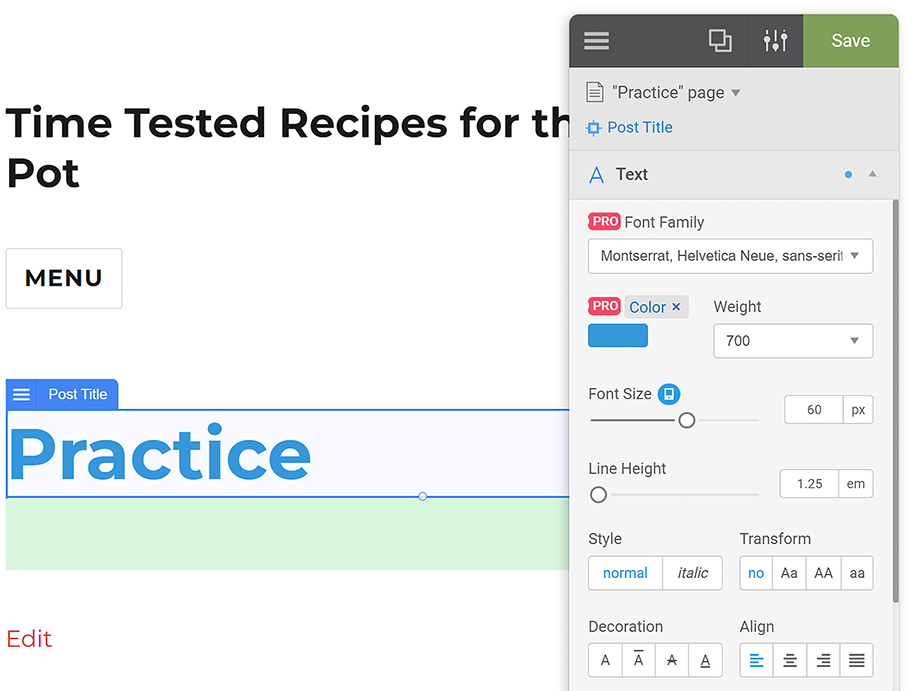
Use the side-by-side editor view to judge whether a typography or color change improves the page before saving it. section 7.4.1
YellowPencil can also apply restrained motion. For example, select an h1 title, open Motion, choose FadeIn, trigger it onscreen, set a one-time repeat and a two-second duration, then save. Refresh the page to check the effect. Small animation choices work best when they support the page rather than distract from it. section 7.4.3 section 7.9
Free and Pro versions differ in what is saved and applied. Pro automatically saves its CSS in YellowPencil > Customizations and includes additional features; the free version saves only some properties. For occasional blocked Pro settings, generated code can still be copied into WordPress’s Additional CSS area. section 7.4 section 7.4.1
