Jupyter Notebook
Jupyter Notebooks are a powerful and versatile tool used extensively in data science, machine learning, and scientific computing. They provide an interactive computing environment that allows users to create and share documents containing live code, equations, visualizations, and narrative text. This makes them invaluable for researchers, educators, and data analysts who need to document their workflows and share their findings comprehensively.
Overview
Jupyter Notebooks enable users to run code interactively within a web browser, combining code execution, results, and documentation in a single, cohesive environment. This interactive document format is particularly useful for iterative development and experimentation, allowing for a seamless flow of data and logic throughout the notebook.
Key Features
-
Interactive Code Execution: Users can write and execute code in various programming languages. The code is processed by a kernel, which returns the output directly in the notebook. This feature is crucial for iterative development and experimentation.
-
Kernel State Maintenance: The kernel maintains the state of the notebook, allowing variables and functions defined in one cell to be accessed and used in subsequent cells.
-
Inline Results: Numerical outputs, plots, and tables are rendered inline within the notebook, providing immediate feedback that aids in understanding and debugging code.
-
Rich Text Formatting: Jupyter Notebooks support Markdown, enabling users to add formatted text, headings, lists, links, and more. This capability is essential for creating well-documented and readable notebooks.
Use Cases
Jupyter Notebooks are used in various fields for tasks such as:
-
Data Analysis: Analysts can load datasets, perform exploratory data analysis, and visualize data trends all within a single notebook.
-
Machine Learning: Researchers and practitioners can prototype machine learning models, tune hyperparameters, and evaluate model performance interactively.
-
Education: Educators create interactive learning materials that allow students to experiment with code and see results in real-time.
-
Scientific Research: Scientists document their experiments, run simulations, and share reproducible research findings using notebooks.
Running and Writing Code
In Jupyter Notebooks, code is executed in code cells. Users can run these cells using keyboard shortcuts like Control-Enter or by clicking a run button. The output appears immediately below the cell, providing instant feedback on the code's performance and results. This interactive environment supports a dynamic workflow where users can experiment with code and immediately see the results.
Dealing with Errors
Errors in Jupyter Notebooks are displayed below the code cell where they occur. The error message includes details such as the line number, a caret indicating the error's location, and a description of the error. This immediate feedback helps users quickly identify and correct mistakes.
Viewing Jupyter Notebooks
Jupyter Notebooks can be viewed on various platforms, including GitHub, where they are rendered in a readable format. This allows for easy sharing and collaboration on projects. Below is an example of how a Jupyter Notebook appears when viewed on GitHub:
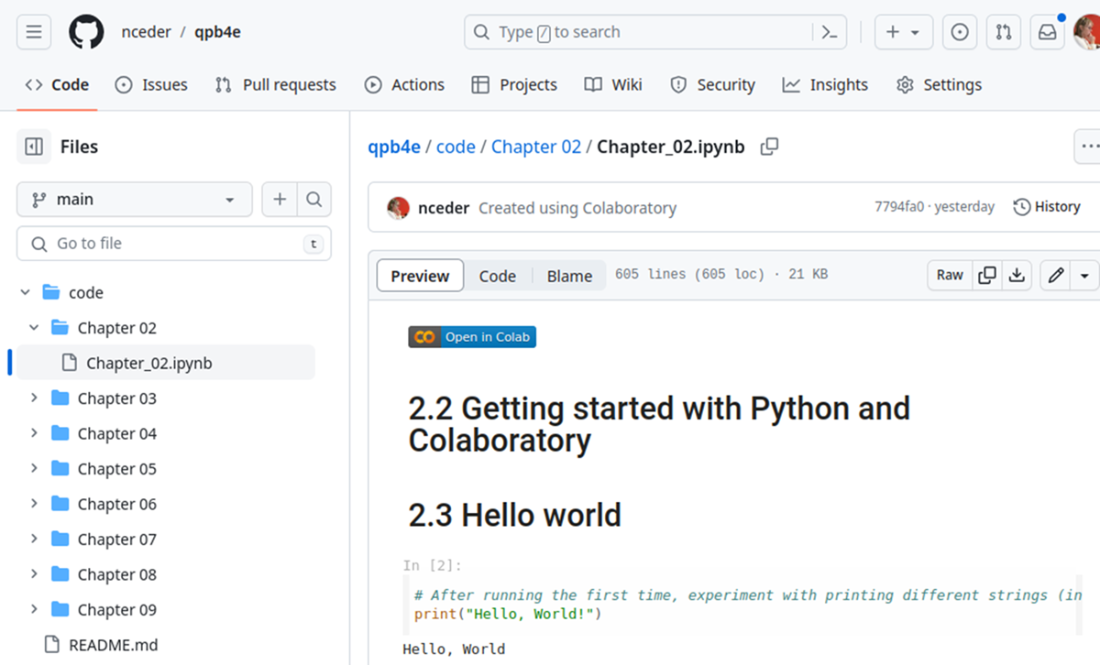 Figure 2.2 Chapter_02.ipynb notebook viewed in Github.
This figure illustrates the integration of code, text, and output in a single document, showcasing the versatility and utility of Jupyter Notebooks in various computing tasks.
For more detailed information, you can refer to The Quick Python Book, Fourth Edition and Deep Learning with PyTorch, Second Edition.
| Book Title | Usage of jupyter notebook | Technical Depth | Connections to Other Concepts | Examples Used | Practical Application |
|------------|---------------------------|-----------------|-------------------------------|---------------|-----------------------|
| [The Quick Python Book, Fourth Edition](https://www.manning.com/books/the-quick-python-book-fourth-edition) | Discusses Jupyter notebooks as an interactive computing environment for data science and scientific computing, emphasizing their role in combining code execution with rich text elements. [more](https://livebook.manning.com/book/the-quick-python-book-fourth-edition/chapter-2/24) | Covers the structure of Jupyter notebooks, including text and code cells, and how they facilitate a dynamic workflow. [more](https://livebook.manning.com/book/the-quick-python-book-fourth-edition/chapter-2/75) | Highlights integration with platforms like GitHub for sharing and collaboration. [more](https://livebook.manning.com/book/the-quick-python-book-fourth-edition/chapter-2/31) | Provides examples of running and writing code, dealing with errors, and viewing notebooks on GitHub. [more](https://livebook.manning.com/book/the-quick-python-book-fourth-edition/chapter-2/47) | Focuses on practical use in documenting workflows and sharing findings. [more](https://livebook.manning.com/book/the-quick-python-book-fourth-edition/chapter-2/24) |
| [Deep Learning with PyTorch, Second Edition](https://www.manning.com/books/deep-learning-with-pytorch-second-edition) | Describes Jupyter notebooks as interactive documents for running code within a web browser, useful in data science and machine learning. [more](https://livebook.manning.com/book/deep-learning-with-pytorch-second-edition/chapter-1/87) | Explains features like kernel state maintenance and inline results, aiding in iterative development. [more](https://livebook.manning.com/book/deep-learning-with-pytorch-second-edition/chapter-1/87) | Connects to data analysis, machine learning, education, and scientific research as use cases. [more](https://livebook.manning.com/book/deep-learning-with-pytorch-second-edition/chapter-1/87) | Discusses use cases in data analysis, machine learning prototyping, and educational materials. [more](https://livebook.manning.com/book/deep-learning-with-pytorch-second-edition/chapter-1/87) | Emphasizes the notebook's role in prototyping models and sharing reproducible research. [more](https://livebook.manning.com/book/deep-learning-with-pytorch-second-edition/chapter-1/87) |
FAQ (Frequently asked questions)
What is a Jupyter notebook?
Why are Jupyter notebooks popular in data science?
How can Jupyter notebooks be viewed on GitHub?
What components make up a Jupyter notebook?
How is code executed in a Jupyter notebook?
Where does the output of code execution appear in a Jupyter notebook?
How do you write and execute code in a Jupyter notebook?
What is the purpose of text cells in a Jupyter notebook?
How are errors displayed in Jupyter notebooks?
Does Colaboratory offer any tools for fixing errors in Jupyter notebooks?
What are the two types of cells in a Jupyter notebook?
Where are errors reported in a Jupyter notebook?
What is a Jupyter Notebook?
How does a Jupyter Notebook execute code?
Can variables defined in one cell of a Jupyter Notebook be used in other cells?
What elements can be combined in a Jupyter Notebook?