Ollama
Ollama is a tool designed to facilitate the interaction with large language models, such as the Llama 3 model. It provides multiple ways to run and interact with these models, either through a command-line interface or programmatically via a REST API.
Running Ollama
There are two primary methods to run Ollama, as illustrated in Figure 7.20. The first method involves using the ollama serve command, which starts the Ollama service in a terminal. The second method is specific to macOS, where the Ollama application can be run in the background without using the command line.
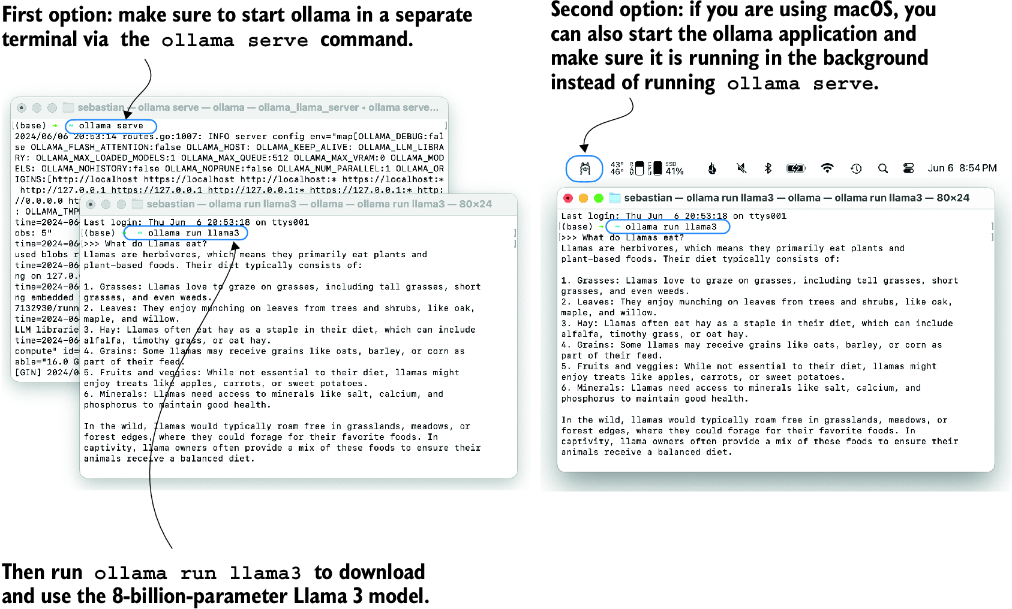 Figure 7.20 Two options for running Ollama. The left panel illustrates starting Ollama using ollama serve. The right panel shows a second option in macOS, running the Ollama application in the background instead of using the ollama serve command to start the application.
Interacting with the Model
Command-Line Interface
Once Ollama is running, you can interact with the Llama 3 model using the command line. For example, to run the 8-billion-parameter Llama 3 model, execute the following command:
ollama run llama3
The first execution of this command will automatically download the model, which requires 4.7 GB of storage space.
REST API
Alternatively, you can interact with the model programmatically using its REST API. The following Python function, query_model, demonstrates how to send a prompt to the model and receive a response:
Listing 7.10 Querying a local Ollama model
import urllib.request

def query_model(
    prompt,
    model="llama3",
    url="http://localhost:11434/api/chat"
):
    data = {             #1
        "model": model,
        "messages": [
            {"role": "user", "content": prompt}
        ],
        "options": {         #2
            "seed": 123,
            "temperature": 0,
            "num_ctx": 2048
        }
    }

    payload = json.dumps(data).encode("utf-8")    #3
    request = urllib.request.Request(                       #4
        url,                                                #4
        data=payload,                                       #4
        method="POST"                                       #4
    ) #4

    request.add_header("Content-Type", "application/json")   #4

    response_data = ""
    with urllib.request.urlopen(request) as response:   #5
        while True:
            line = response.readline().decode("utf-8")
            if not line:
                break
            response_json = json.loads(line)
            response_data += response_json["message"]["content"]

    return response_data
#1 Creates the data payload as a dictionary
#2 Settings for deterministic responses
#3 Converts the dictionary to a JSON-formatted string and encodes it to bytes
#4 Creates a request object, setting the method to POST and adding necessary headers
#5 Sends the request and captures the response
Verifying Ollama is Running
Before interacting with the model, it is crucial to ensure that Ollama is running. The following Python code checks if the Ollama process is active:
import psutil

def check_if_running(process_name):
    running = False
    for proc in psutil.process_iter(["name"]):
        if process_name in proc.info["name"]:
            running = True
            break
    return running

ollama_running = check_if_running("ollama")

if not ollama_running:
    raise RuntimeError(
        "Ollama not running. Launch ollama before proceeding."
)
print("Ollama running:", check_if_running("ollama"))
The output should confirm that Ollama is running by displaying Ollama running: True. If it shows False, ensure that the ollama serve command or the Ollama application is actively running.