concept page in category angular

This is an excerpt from Manning's book Getting MEAN with Mongo, Express, Angular, and Node.js 2ED.
In this chapter, you’ll start by adding the Angular router to navigate between pages; then, you’ll create the homepage and the About page and add geolocation functionality. As you add more components and functionality, you’ll explore various best practices, such as making reusable components and building up a modular application.
Notice that the URL in the browser changes as normal, but the page doesn’t reload or flicker when moving between the pages. If you check the network traffic when switching between these two pages, you’ll see only calls to the API being made. You can also use the back and forward buttons in your browser, and the site will work like a traditional website. Congratulations—you’ve built a single-page application!

This is an excerpt from Manning's book Angular Development with Typescript, Second Edition.
The Angular framework is a great fit for developing single-page applications (SPAs), where the entire browser’s page is not being refreshed and only a certain portion of the page (view) may be replacing another as the user navigates through your app. Such client-side navigation is arranged with the help of the Angular router. If you want to allocate an area within a component’s UI for rendering its child components, you use a special tag, <router-outlet>. For example, on app start, you may display the home component in this outlet, and if the user clicks the Products link, the outlet content will be replaced by the product component.
Listing 14.19. The generated app.e2e-spec.ts file
import {AppPage} from './app.po';

describe('e2e-testing-samples App', () => {
  let page: AppPage;

  beforeEach(() => {
    page = new AppPage();                                            #1
   });

  it('should display welcome message', () => {
    page.navigateTo();                                               #2
     expect(page.getParagraphText()).toEqual('Welcome to app!');     #3
   });
});

This is an excerpt from Manning's book Testing Angular Applications.
One potential cause of flakiness is having a test read the DOM of a page while Angular is in the middle of updating it. You could avoid this issue by adding sleep commands after every step in your tests that might cause Angular to update the page, but that would slow down your test runs, and it’s not guaranteed to work. Protractor takes a more efficient route and syncs your tests with Angular to help prevent flaky test failures.
Listing 9.4 Testing the feed dialog with expected conditions
describe('feed dialog', () => {
  let EC;

  beforeEach(() => {
    browser.get('/contact/4');
    EC = browser.ExpectedConditions;
  });

  it('should open the dialog with expected conditions', () => {
    browser.waitForAngularEnabled(false);

    let feedButton = element(by.css('button.feed-button'));
    browser.wait(EC.elementToBeClickable(feedButton),
 3000, 'waiting for feed button to be clickable');    #1
    feedButton.click();

    let dialogTitle = element(
      by.css('app-contact-feed h2.mat-dialog-title'))
    browser.wait(EC.visibilityOf(dialogTitle),
 1000, 'waiting for the dialog title to appear');    #2
    expect(dialogTitle.getText())
      .toContain('Latest posts from Craig Service');

    let closeButton = element(by.css('button[mat-dialog-close]'))
    closeButton.click();
    browser.wait(EC.stalenessOf(dialogTitle),
 3000, 'wait for dialog to close');    #3
    expect(dialogTitle.isPresent()).toBeFalsy();
  });
});

#1   Waits for the feed button to be clickable
#2   Waits for the dialog title to be visible
#3   Waits for the dialog title to be removed from the page
This test passes because you wait for the dialog title to become stale before the last expectation. In WebDriver tests, a stale element is one that you may have a reference to, but that was removed from the page. In this case, the title of the dialog box becomes stale because the closing animation has finished and the dialog has been removed from the page. Elements that you remove from the page with
*ngForor*ngIfalso would become stale.

This is an excerpt from Manning's book Angular in Action.
The easiest way to think about a component architecture is to look at an example of a page with a large number of discrete parts and inspect how the various parts relate to one another. Figure 1.4 shows an example from a future chapter and visually breaks down the various component parts.
Figure 1.4 Component architecture illustrated by showing how components are nested and combined to create more complex layouts
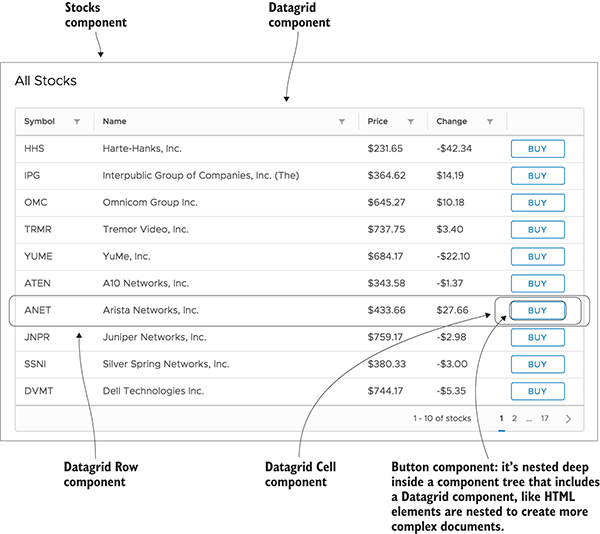
The figure shows an isolated section from one of the book chapter examples, illustrating that several components combine to create this display. You can see that various parts are independent from the others, but they also work together to create the list of items. There’s clearly a hierarchy between them. The list of components on the right shows the parent-to-child relationship each of the components has with the others, and this is essentially how HTML elements work together on the page.
Changes are always triggered by some asynchronous activity, such as when a user interacts with the page. When these changes occur, there is a chance (though no guarantee) that the application state or data has changed. Here are some examples:
Figure 8.9 Example of an impure pipe that loads news at the top of the page by maintaining state in the pipe itself
