concept user in category docker

This is an excerpt from Manning's book Bootstrapping Microservices with Docker, Kubernetes and Terraform.
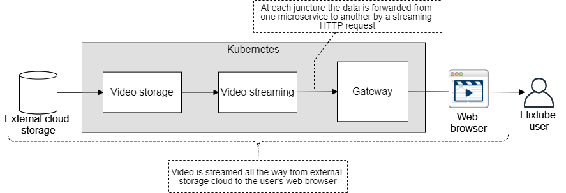
A microservices application typically has one or more services externally exposed to allow users to interact with the system. Figure 1.4 shows two services acting as gateways for web-based and mobile phone users.
Video streaming; and

This is an excerpt from Manning's book Learn Docker in a Month of Lunches.
You’ve packaged a simple application to run in Docker, and the process is exactly the same for more complicated apps. You write the Dockerfile with all the steps to package your app, collect the resources that need to go into the Docker image, and decide how you want users of your image to configure the behavior of the app.
The Docker and Docker Compose command lines both support a
hostparameter, which specifies the address of the Docker Engine where you want to send commands. If the Engine is configured to listen on the local address without security, thehostparameter is all you need; there’s no authentication for users and no encryption of network traffic. You can see my output in figure 15.2--I can list containers using the Docker CLI or the API.

This is an excerpt from Manning's book Docker in Action, Second Edition.
Another software problem is that an application’s dependencies typically include a specific operating system. Portability between operating systems is a major problem for software users. Although it’s possible to have compatibility between Linux software and macOS, using that same software on Windows can be more difficult. Doing so can require building whole ported versions of the software. Even that is possible only if suitable replacement dependencies exist for Windows. This represents a major effort for the maintainers of the application and is frequently skipped. Unfortunately for users, a whole wealth of powerful software is too difficult or impossible to use on their system.
Linux systems have all sorts of devices, including hard drives, optical drives, USB drives, mouse, keyboard, sound devices, and webcams. Containers have access to some of the host’s devices by default, and Docker creates other devices specifically for each container. This works similarly to how a virtual terminal provides dedicated input and output devices to the user.
If the result is blank, the container will default to running as the root user. If it isn’t blank, either the image author specifically named a default run-as user or you set a specific run-as user when you created the container. The --format or -f option used in the second command allows you to specify a template to render the output. In this case, you’ve selected the User field of the Config property of the document. The value can be any valid Golang template, so if you’re feeling up to it, you can get creative with the results.
This approach has a problem. The run-as user might be changed by the entrypoint or command the image uses to start up. These are sometimes referred to as boot, or init, scripts. The metadata returned by docker inspect includes only the configuration that the container will start with. So if the user changes, it won’t be reflected there.
We won’t go into much detail here, but the Linux user database is stored in a file located at /etc/passwd. This command will read that file from the container filesystem and pull the list of usernames. Once you’ve identified the user you want to use, you can create a new container with a specific run-as user. Docker provides the --user or -u flag on docker container run and docker container create for setting the user. This will set the user to nobody:
docker container run --rm \
    --user nobody \           #1
    busybox:1.29 id           #2
This command used the nobody user. That user is common and intended for use in restricted-privileges scenarios such as running applications. That is just one example. You can use any username defined by the image here, including root. This only scratches the surface of what you can do with the -u or --user flag. The value can accept any user or group pair. When you specify a user by name, that name is resolved to the user ID (UID) specified in the container’s passwd file. Then the command is run with that UID. This leads to another feature. The --user flag also accepts user and group names or IDs. When you use IDs instead of names, the options start to open up:
docker container run --rm \
    -u nobody:nogroup \        #1
    busybox:1.29 id            #2

docker container run --rm \
    -u 10000:20000 \           #3
    busybox:1.29 id            #4
The second command starts a new container that sets the run-as user and group to a user and group that do not exist in the container. When that happens, the IDs won’t resolve to a user or group name, but all file permissions will work as if the user and group did exist. Depending on how the software packaged in the container is configured, changing the run-as user may cause problems. Otherwise, this is a powerful feature that can simplify running applications with limited privileges and solving file-permission problems.

This is an excerpt from Manning's book Docker in Practice, Second Edition.
To get an understanding of what Docker is, it’s easier to start with a metaphor than a technical explanation, and the Docker metaphor is a powerful one. A docker was a laborer who moved commercial goods into and out of ships when they docked at ports. There were boxes and items of differing sizes and shapes, and experienced dockers were prized for their ability to fit goods into ships by hand in cost-effective ways (see figure 1.2). Hiring people to move stuff around wasn’t cheap, but there was no alternative. This should sound familiar to anyone working in software. Much time and intellectual energy is spent getting metaphorically odd-shaped software into differently-sized metaphorical ships full of other odd-shaped software, so they can be sold to users or businesses elsewhere.
You probably first encountered restricted access when you installed Docker and needed to use sudo to run Docker itself. Technique 41 describes how to selectively permit users on the local machine to use Docker without this restriction.
But this doesn’t help you if you have users connecting to a Docker daemon from another machine. We’ll look at a couple of ways to provide a bit more security in those situations.

This is an excerpt from Manning's book Docker in Action.
Another software problem is that an application’s dependencies typically include a specific operating system. Portability between operating systems is a major problem for software users. Although it’s possible to have compatibility between Linux software and Mac OS X, using that same software on Windows can be more difficult. Doing so can require building whole ported versions of the software. Even that is only possible if suitable replacement dependencies exist for Windows. This represents a major effort for the maintainers of the application and is frequently skipped. Unfortunately for users, a whole wealth of powerful software is too difficult or impossible to use on their system.
docker create --name bob busybox:latest ping localhost docker inspect bob #1 docker inspect --format "{{.Config.User}}" bob #2 #1 - Display all of bob’s metadata #2 - Show only run-as user defined by bob’s image !@%STYLE%@! {"css":"{\"css\": \"font-weight: bold;\"}","target":"[[{\"line\":0,\"ch\":14},{\"line\":0,\"ch\":16}],[{\"line\":4,\"ch\":15},{\"line\":4,\"ch\":17}]]"} !@%STYLE%@!If the result is blank, the container will default to running as the root user. If it isn’t blank, either the image author specifically named a default run-as user or you set a specific run-as user when you created the container. The --format or -f option used in the second command allows you to specify a template to render the output. In this case you’ve selected the User field of the Config property of the document. The value can be any valid GoLang template, so if you’re feeling up to it, you can get creative with the results.
There are problems with this approach. First, the run-as user might be changed by whatever script the image uses to start up. These are sometimes referred to as boot, or init, scripts. The metadata returned by docker inspect includes only the configuration that the container was started with. So if the user changes, it won’t be reflected there. Second, you have to create a container from an image in order to get the information. That can be dangerous.
I won’t go into much detail here, but the Linux user database is stored in a file located at /etc/passwd. This command will read that file and pull a list of the usernames. Once you’ve identified the user you want to use, you can create a new container with a specific run-as user. Docker provides the --user or -u flag on docker run and docker create for setting the user. This will set the user to “nobody”:
docker run --rm \ --user nobody \ #1 busybox:latest id #2 #1 - Set run-as user to nobody #2 - Outputs: uid=99(nobody) gid=99(nobody) !@%STYLE%@! {"css":"{\"css\": \"font-weight: bold;\"}","target":"[]"} !@%STYLE%@!This command used the “nobody” user. That user is very common and intended for use in restricted-privileges scenarios like running applications. That was just one example. You can use any username defined by the image here, including root. This only scratches the surface of what you can do with the -u or --user flag. The value can accept any user or group pair. It can also accept user and group names or IDs. When you use IDs instead of names, the options start to open up:
docker run --rm \ -u nobody:default \ #1 busybox:latest id #2 docker run --rm \ -u 10000:20000 \ #3 busybox:latest id #4 #1 - Set run-as user to nobody and group to default #2 - Outputs: uid=99(nobody) gid=1000(default) #3 - Set UID and GID #4 - Outputs: uid=10000 gid=20000 !@%STYLE%@! {"css":"{\"css\": \"font-weight: bold;\"}","target":"[]"} !@%STYLE%@!The second command starts a new container that sets the run-as user and group to a user and group that do not exist in the container. When that happens, the IDs won’t resolve to a user or group name, but all file permissions will work as if the user and group did exist. Depending on how the software packaged in the container is configured, changing the run-as user may cause problems. Otherwise, this is a powerful feature that can make file-permission issues simple to resolve.
You should be very careful about which users on your systems are able to control your Docker daemon. If a user can control your Docker daemon, that person can effectively control the root account on your host.