concept widget in category gwt

This is an excerpt from Manning's book GWT in Action.
In GWT the fundamental building block of the user interface is the Widget, and its subclasses come in all shapes and sizes. To group these widgets you use a specialized type of widget called a Panel, which is a widget that has the ability to contain other widgets, including other panels. Next is the Composite, which is a specialized widget that can hide its internal implementation from outside callers. These widgets will be covered throughout this book.
Together, widgets, panels, and composites allow you to piece together your user interface. GWT also provides a special class of widgets called data-presentation widgets (or Cell widgets) that are designed to make it easy to display data to the user in a series of pages, like a search result listing (chapter 10, “Data presentation (Cell) widgets”). These are designed to be fast, to conserve memory in the browser, and to make it easy for you as the developer to provide access to extremely large data sets.
A widget is a component of your web application with which the user may interact. A panel is a widget that can hold one or more other widgets in a specific visual/functional structure.
How do you style a widget using CSS? Check out the Javadoc for the widget class, which will tell you the style names attached to various component parts of the widget/panel. For example, a Button has the standard style name .gwt-Button.
If you give a definition for the widget’s default style name in a linked CSS file, then all widgets of that type will use that style. In BasicProject you put a simple border around the logo Image by adding the following to BasicProject.css:
.gwt-Image{
   width: 80%;
   height: 60px;
   margin: 25px;
   border: 1px black solid;
}
As you saw at the start of this section, widgets are the components that are used to interact with the user: buttons, labels, and so on. GWT has widgets that represent standard HTML/DOM objects such as images and buttons, and widgets that represent more abstract concepts, such as trees or menu bars. There’s even a set of data-presentation widgets, discussed in chapter 10, that give an efficient view of large data sets. Luckily we don’t need to differentiate between the types; they’re all widgets and they’re created and used in exactly the same way.
We’d particularly recommend running the GWT Showcase of Features that comes with the GWT download (or can be accessed online[2]) to get a good view of the types of widgets that GWT provides—see figure 3.2 for an example. You can also find third-party libraries that provide even more widgets or fancier versions of the standard ones; let’s not worry about those for now because we want to concentrate on widgets in general.
A benefit of the Java/DOM dual view of widgets is that on the Java side they live within a hierarchy, giving predictable behavior through inheritance. You can find the standard GWT widgets in the com.google.gwt.user.client.ui package, and the first few levels of the hierarchy are shown in figure 3.4.
Figure 3.4. First three layers of the GWT widget hierarchy starting with UIObject descending to, for example, Tree
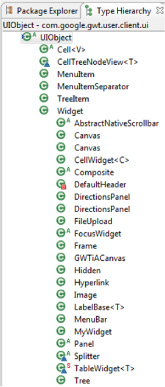
Every widget is a subclass of UIObject, which provides methods for setting a widget’s size (for example, setWidth, setHeight, SetSize, and SetPixelSize), getting its size and position (for example, getWidth and getAbsoluteLeft), and setting its visibility (setVisible).
Widget is a subclass of UIObject and extends the functionality by adding the ability to deal with attaching and detaching widgets to/from the browser DOM and hooking into the GWT event system. By managing these two aspects, GWT removes the chance of memory leaks that can often sneak into Ajax applications when manipulating the DOM directly. If you’re interested in the mechanics of attaching/detaching widgets, we cover the topic in more detail in chapter 4.
Next in the widget hierarchy you’ll find some real widgets, such as FileUpload, Image, and Tree. You may be wondering where widgets for button, text box, radio button, and so on are. These are all hiding under the FocusWidget class, along with some GWT additional widgets such as PushButton, ToggleButton, RichTextArea, and others.
Two subclasses of Widget deserve a little more explanation: Composite and Panel. Composite widgets are widgets typically made from two or more other widgets that you wish to treat as a single widget. You’ll probably spend a large part of your development time creating these types of widgets because they’ll form the valuable and reusable components of your application. We’ll look at how to create Composite widgets in chapter 4, but GWT provides some as standard. These include, among others, Caption-Panel (a panel that has a caption), DatePicker (for picking dates), and TabPanel.

This is an excerpt from Manning's book GWT in Practice.
The functional specifications for a calculator (at least a simple one) are fairly universal; they include a display, some buttons, and some mathematical operations defined by the likes of Pythagoras and Euclid. For our calculator, we’ll make use of one GWT TextBox for the display and many GWT Buttons for, well, the buttons. We’ll also use a layout derived from a Panel and a Grid to control the overall placement of the UI items. In terms of MVC, view elements are where all widgets begin, starting with the layout. The model and controller for our calculator will be implemented as separate classes that are referenced by the widget.
With GWT, you use widgets to create your application. These components are built from layout panels, input elements, events, data objects, and various combinations thereof. This is where GWT really departs from typical web applications and may seem somewhat foreign to those accustomed to standard server-side Java development. To create an application, you use widgets that are capable of being inserted or removed from the screen, in a single page, on the client side.
When working with GWT, you are, of course, no longer building navigation and pages in the way you did before. Even more module-centric web frameworks like JSF are still essentially page-based, with the model, view, and controller layers executing within the application server. Now you need to look at your application as having a series of widgets making up the view, a controller that orchestrates actions, and a smart model layer.
Extending FlexTable
makes laying out the widgets in the constructor method very easy. We simply create the elements we need
and add them. FlexTable works much like a standard HTML table element, dynamically reconfiguring itself as elements are added to grid positions
.