concept asset in category ios

This is an excerpt from Manning's book iOS 7 in Action.
You’ll need to add a framework to this project that will help you access the media, or assets, stored on a device. Frameworks are compiled libraries that you can use to add functionality to your applications. By default, all new iOS apps created in Xcode include the frameworks UIKit, Foundation, and CoreGraphics. These three frameworks provide the basic functionality to create iOS applications. You’re going to add a new framework that will allow you to access media assets.
Table 7.3. Property keys representing different properties for an ALAsset
Property
Description
ALAssetPropertyType Type of asset: a photo, video, or unknown ALAssetPropertyLocation Location representation with latitude and longitude ALAssetPropertyDuration Total play time for a video asset ALAssetPropertyOrientation Number representing the orientation of a photo ALAssetPropertyDate Creation date of the asset ALAssetPropertyRepresentations Array of different types of representations of an asset ALAssetPropertyURLs Array of URLs for each representation ALAssetPropertyAssetURL Unique identifier URL for asset
[[IAAssetsLibrary defaultInstance] assetForURL:self.assetURL
                                   resultBlock:^(ALAsset *asset)
{
  // Successfully retrieved asset
}
                                  failureBlock:^(NSError *error)
{
  // Failed retrieving asset
}];
This method will retrieve an ALAsset from the NSURL that you provide it. If it succeeds in finding the asset, it returns it to you in the result block. If it fails, it gives you an error within the failure block.
Let’s add the code to retrieve an asset when your view is loaded. In IAAssetInfoViewController.m add this one line to the bottom of the viewDidLoad method to call the retrieveAsset method that you’re about to write:
In retrieveAsset you’re calling a new method, setupViewFromAsset:, if asset retrieval succeeds
. If there’s an error retrieving the asset, you show an alert
.
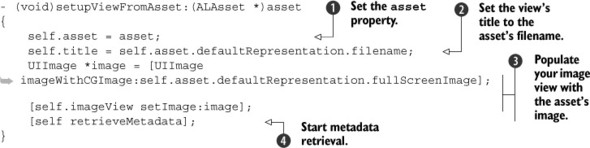
Now you’ll add the setupViewFromAsset: method. Its purpose will be to set the title of the view with the asset’s filename, populate your image view, and retrieve the metadata. Add the method found in the following listing.
The first thing you do is set the asset property
. At the end of the method you make a call to a new method that will retrieve and populate your metadata depending on whether it’s a photo or a video
.