concept color in category ios

This is an excerpt from Manning's book Anyone Can Create an App: Beginning iPhone and iPad programming.
Pick one of the colors and decide to go with that one.
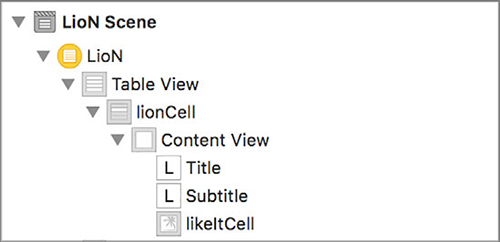
The final layout changes you need to make for the app are on the main scene, so the font and the colors look better. Make sure the LioN scene is visible in the storyboard. Click lionCell so Content View is visible beneath it, and then expand Content View so the two text labels and the image are visible (see figure 26.18).
Figure 26.18. Expand lionCell and Content View so the Title label, the Subtitle label, and the likeItCell image are visible.
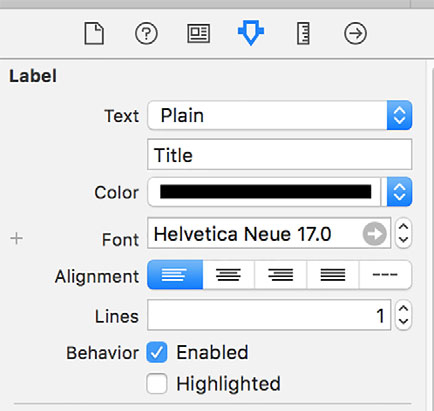
Let’s start by making the text look better. Back in the storyboard, select the Title label, open the Attributes Inspector, and make sure Font is set to Helvetica Neue 17.0 and Color is set to black, as shown in figure 26.19.
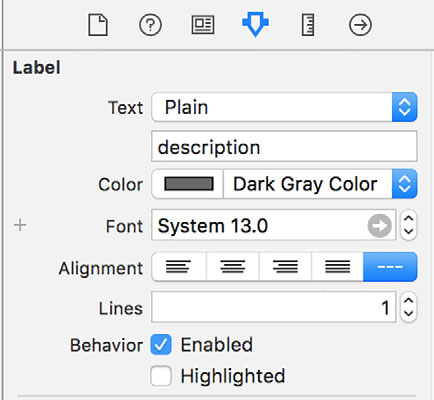
Next, select the Description label. Set Font to System 13.0 and Color to Dark Gray Color, as shown in figure 26.20.

This is an excerpt from Manning's book iOS 4 in Action: Developing iPhone and iPad Apps.
When you’re passing a color as an argument, you almost always do so by nesting a call to the UIColor class object:
In Quartz, you select colors by setting the fill color, the stroke color, or both in the current graphic state. After you’ve done this, any fill or stroke commands following the color commands appear in the appropriate colors. Note that color is irrelevant while you’re drawing the individual elements of a path—the color commands apply only to the painting of the complete path at the end.
You can select colors from a variety of color spaces, which are different ways to choose colors. They include RGB (red-green-blue), RGBA (red-green-blue-alpha), CMYK (cyan-magenta-yellow-black), and CGColor (the underlying Core Graphics color model). On the iPhone and iPad, you’ll usually either use the RGBA color space or use a command that lets you select a color using standard UIKit methods. Table 13.7 lists the four most relevant of these functions.
Table 13.7. The most important of numerous coloring functions
Function
Arguments
Summary
CGContextSetRGBFillColor context, red, green, blue, alpha Sets the fill to the RGBA value CGContextSetRGBStrokeColor context, red, green, blue, alpha Sets the stroke to the RGBA value CGContextSetFillColorWithColor context, CGColor Sets the fill to the CGColor CGContextSetStrokeColorWithColor context, CGColor Sets the stroke to the CGColor The two RGB functions allow you to set a color using values from 0 to 1 for each of red, green, blue, and alpha transparency (opacity). You saw an example of this earlier:
CGContextSetRGBFillColor(ctx, 1, 0, 0, 1);The last two functions in table 13.7 allow you to set the color using any CGColor, and you’ll understand how useful that is when you realize that you can read a CGColor property from any UIColor you create:

This is an excerpt from Manning's book iPhone and iPad in Action: Introduction to SDK Development.
When you’re passing a color as an argument, you almost always do so by nesting a call to the UIColor class object:
In Quartz, you select colors by setting the fill color, the stroke color, or both in the current graphic state. After you’ve done this, any fill or stroke commands following the color commands appear in the appropriate colors. Note that color is irrelevant while you’re drawing the individual elements of a path—the color commands apply only to the painting of the complete path at the end.
You can select colors from a variety of color spaces, which are different ways to choose colors. They include RGB (red-green-blue), RGBA (red-green-blue-alpha), CMYK (cyan-magenta-yellow-black), and CGColor (the underlying Core Graphics color model). On the iPhone and iPad, you’ll usually either use the RGBA color space or use a command that lets you select a color using standard UIKit methods. Table 13.7 lists the four most relevant of these functions.
Table 13.7. The most important of numerous coloring functions
Function
Arguments
Summary
CGContextSetRGBFillColor context, red, green,
blue, alphaSets the fill to the RGBA value CGContextSetRGBStrokeColor context, red, green,
blue, alphaSets the stroke to the RGBA value CGContextSetFillColorWithColor context, CGColor Sets the fill to the CGColor CGContextSetStrokeColorWithColor context, CGColor Sets the stroke to the CGColor The two RGB functions allow you to set a color using values from 0 to 1 for each of red, green, blue, and alpha transparency (opacity). You saw an example of this earlier:
CGContextSetRGBFillColor(ctx, 1, 0, 0, 1);The last two functions in table 13.7 allow you to set the color using any CGColor, and you’ll understand how useful that is when you realize that you can read a CGColor property from any UIColor you create:

This is an excerpt from Manning's book iPhone in Action: Introduction to Web and SDK Development.
Listing 4.6 shows an example of a simple touch-based program that allows you to drag a color from one box into another.
What’s impressive about listing 4.6 is how little work was required to interpret touch commands. You start off with a set of <div>s—three RGB-colored boxes
, which are small boxes filled with the named color, and a special colorbox
, which is another small box, this one located at 110x60, which can be filled with the color in question. The layout information for all of these boxes is contained in styles
, which we’ve opted to leave out since they’re pretty simple CSS, though we’ve shown the results in figure 4.5.


In Quartz, you select colors by setting the fill color, the stroke color, or both in the current graphical state. Once you’ve done this, any fill or stroke commands following the color commands will appear in the appropriate colors. Note that color is irrelevant while you are drawing the individual elements of a path—the color commands apply only to the painting of the complete path at the end.
You can select colors from a variety of color spaces, which are different ways to choose colors. They include RGB (red-green-blue), RGBA (red-green-blue-alpha), CMYK (cyan-magenta-yellow-black), and CGColor (the underlying Core Graphics color model). On the iPhone, you’ll usually want to either use the RGBA color space or use a command that lets you select a color using standard UIKit methods. Table 19.7 lists the four most relevant of these functions.
Table 19.7. The most important of numerous coloring functions
Arguments
Summary
CGContextSetRGBFillColor
context, red, green, blue, alpha
Sets the fill to the RGBA value
CGContextSetRGBStrokeColor
context, red, green, blue, alpha
Sets the stroke to the RGBA value
CGContextSetFillColorWithColor
context, CGColor
Sets the fill to the CGColor
CGContextSetStrokeColorWithColor
context, CGColor
Sets the stroke to the CGColor
The two RGB functions allow you to set a color using values from 0 to 1 for each of red, green, blue, and alpha transparency (opacity). We saw an example of this in listing 19.2:
CGContextSetRGBFillColor(ctx, 1, 0, 0, 1);The last two functions in table 19.7 allow you to set the color using any CGColor, and you’ll understand how useful that is when you realize that you can read a CGColor property from any UIColor you create: