concept control in category ios

This is an excerpt from Manning's book Hello Swift!: iOS app programming for kids and other beginners.
The Libraries panel is in the bottom-right corner of Xcode (figure 2.7). The Object Library is where you get objects and controls for your app. You use the Object Library to get your controls; specifically, you need the Label object so that you can show some text to the user.

This is an excerpt from Manning's book iOS Development with Swift.
UIKit framework of the Cocoa Touch layer— Among the many features it provides are the basic architecture for your app and a library of standardized views and controls, and it manages user input. The UIKit is often imported by default, which in turn imports the Foundation framework by default.
Controls are special types of views that are built to receive user interaction. You’ve already seen one type of control in the distance converter app: the text field. In this chapter, you’ll extend the distance converter app to convert kilometers or miles that the user enters in the text fields, by adding buttons and responding to changes in the text fields. Finally, we’ll look at other available controls for receiving user interaction.

This is an excerpt from Manning's book Objective-C Fundamentals.
Table 1.2. Project templates available in Xcode for creating a new iOS project
Project type
Description
Navigation-based Application Creates an application similar in style to the built-in Contacts application with a navigation bar across the top. OpenGL ES Application Creates an OpenGL ES–based graphics application suitable for games and so on. Split View–based Application Creates an application similar in style to the built-in Mail application on the iPad. Designed to display master/detail-style information in a single screen. Tab Bar Application Creates an application similar in style to the built-in Clock application with a tab bar across the bottom. Utility Application Creates an application similar in style to the built-in Stocks and Weather applications, which flip over to reveal a second side. View-based Application Creates an application that consists of a single view. You can draw and respond to touch events from the custom view. Window-based Application Creates an application that consists of a single window onto which you can drag and drop controls.
To add controls, find them in the Library window, which contains a catalog of available user interface controls, and drag and drop them onto the view. If the Library window isn’t visible, you can open it via the View > Utilities > Object Library menu option (Control-Option-Cmd-3). For the Coin Toss game, you require two Labels and two Rounded Rect Buttons, so drag two of each control onto the view. The process of dragging and dropping a control onto the view is shown in figure 1.7.
Figure 1.7. Dragging and dropping new controls onto the view. Notice the snap lines, which help ensure your user interface conforms to the iOS Human Interface Guidelines (HIG).
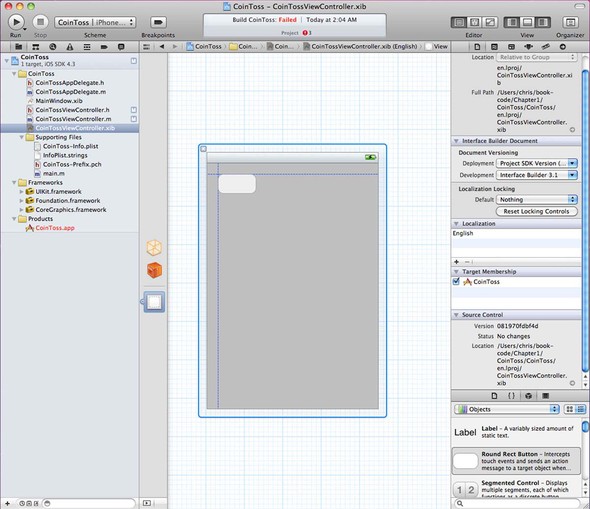
After you drag and drop the controls onto the view, you can resize and adjust their positions to suit your aesthetics. The easiest way to change the text displayed on a button or label control is to double-click the control and begin typing. To alter other properties, such as font size and color, you can use the Attributes Inspector pane, which can be displayed via the View > Utilities > Attributes Inspector menu option (Alt-Cmd-4). While styling your view, you can refer back to figure 1.2 for guidance.

This is an excerpt from Manning's book iOS 4 in Action: Developing iPhone and iPad Apps.
For any UIControl objects, such as buttons, sliders, and toggles, events are often turned into actions. Whereas events report touches to the screen, actions instead report manipulations of the controls and are easier to read. Actions follow a slightly different hierarchy of response.
The UIControl class contains several properties that control its basic setup, such as enabled (which determines whether it’s on), highlighted (which determines its visual state), and selected (which sets Boolean state for appropriate sorts of controls, such as switches). You can also directly access a control’s touch events with beginTracking-WithTouch:withEvent:, continueTrackingWithTouch:withEvent:, and endTrackingWithTouch:withEvent:, methods that work in a similar way to the event response functions that you played with in UIResponder. But you won’t be using these methods, because they don’t represent the simple advantages that you’ll see when using control objects. For that, we turn to UIControl’s action-target mechanism.
The UIControl object introduces a new event-handling infrastructure that takes touch events of the sort that you might have directly handled in the previous section and (eventually) converts them into simple actions, without your having to worry about the specifics of how a user accessed a control. The complete sequence of events is outlined in figure 6.6.
Figure 6.6. UIControl objects take standard touch events and turn them into actions that are dispatched by UIApplication.
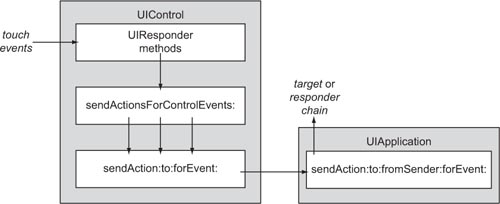
When a touch event arrives at a UIControl object (via normal dispatching along the responder chain), the control does something unique. Inside the standard UIResponder methods that you used in the previous section (such as touches-Began:withEvent:), a UIControl object turns standard touch events into special control events.
These control events broadly describe how the user has interacted with the controls rather than recording gestures. For example, they may report that a button has been pushed or a slider moved. They’re divided into three categories: touch events, editing events, and a slider event. The touch events describe how a user’s finger interacted with the control, the editing events describe changes to a UITextField, and the UIControlEventValueChanged event describes changes to a UISlider.
This is an excerpt from Manning's book iPhone and iPad in Action: Introduction to SDK Development.
For any UIControl objects, such as buttons, sliders, and toggles, events are often turned into actions. Whereas events report touches to the screen, actions instead report manipulations of the controls and are thus easier to read. Actions follow a slightly different hierarchy of response.
The UIControl class contains several properties that control its basic setup, such as enabled (which determines whether it’s on), highlighted (which determines its visual state), and selected (which sets Boolean state for appropriate sorts of controls, such as switches). You can also directly access a control’s touch events with beginTrackingWithTouch:withEvent:, continueTrackingWithTouch:withEvent:, and endTrackingWithTouch:withEvent:, methods that work in a similar way to the event response functions that you played with in UIResponder. But you won’t be using these methods, because they don’t represent the simple advantages that you’ll see when using control objects. For that, we turn to UIControl’s action-target mechanism.
The UIControl object introduces a new event-handling infrastructure that takes touch events of the sort that you might have directly handled in the previous section and (eventually) converts them into simple actions, without your having to worry about the specifics of how a user accessed a control. The complete sequence of events is outlined in figure 6.6.
Figure 6.6. UIControl objects take standard touch events and turn them into actions that are dispatched by UIApplication.
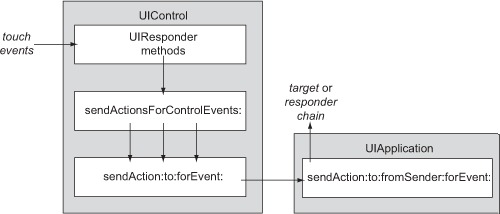
When a touch event arrives at a UIControl object (via normal dispatching along the responder chain), the control does something unique. Inside the standard UIResponder methods that you used in the previous section (such as touchesBegan:withEvent:), a UIControl object turns standard touch events into special control events.
These control events broadly describe how the user has interacted with the controls rather than recording gestures. For example, they may report that a button has been pushed or a slider moved. They’re divided into three categories: touch events, editing events, and a slider event. The touch events describe how a user’s finger interacted with the control; the editing events describe changes to a UITextField; and the UIControlEventValueChanged event describes changes to a UISlider.

This is an excerpt from Manning's book iPhone in Action: Introduction to Web and SDK Development.
Use chrome— It’s most important to match the iPhone’s chrome. Put navigation and control bars to the top and the bottom of your App’s web pages. You might want to match the iPhone’s gray coloring, or you might want to match the colors of the rest of your site.
The UIControl class contains several properties that control its basic setup, such as enabled (which determines whether it’s on), highlighted (which determines its visual state), and selected (which sets Boolean state for appropriate sorts of controls, such as switches). You can also directly access a control’s touch events with beginTrackingWithTouch:withEvent:, continueTrackingWithTouch:withEvent:, and endTrackingWithTouch:withEvent:, methods that work in a similar way to the event response functions that we played with in UIResponder. But we won’t be using these methods at all, because they don’t represent the simple advantages that you’ll see when using control objects. For that, we turn to UIControl’s action-target mechanism.
When a touch event arrives at a UIControl object (via normal dispatching along the responder chain), the control does something unique. Inside the standard UIResponder methods that we used in the previous section (such as touches-Began:withEvent:), a UIControl object turns standard touch events into special control events.
These control events broadly describe how the user has interacted with the controls rather than just recording gestures. For example, they might report that a button has been pushed or a slider moved. They’re divided into three categories: touch events, editing events, and a slider event. The touch events describe how a user’s finger interacted with the control; the editing events describe changes to a UITextField; and the ValueChanged event describes changes to a UISlider.