concept interface editor in category ios

This is an excerpt from Manning's book iOS 7 in Action.
When you were creating the interface for the Hello Time app, you clicked Main.storyboard to launch the interface editor. You can see an example of a view being edited inside a storyboard in figure 1.18.
This storyboard handles all of the scenes within your application and how they interact with one another. Xcode’s interface editor is a true drag-and-drop interface. You can drag and drop UI elements from the library pane within the utility area directly onto your views. Modifying these UI elements can be done within the inspector pane, which is located within the utility area on the right side of the window. Xcode’s interface editor also allows you to edit XIBs (pronounced as “nibs” because the extension used to be .nib instead of .xib). We’ll be going deeper into views and storyboards in the chapters to come.
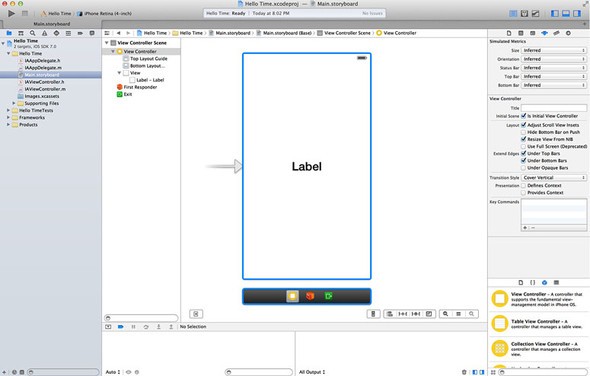
Once you’ve created your project, you should have a file called Main.storyboard in the project navigator. Click this file to open the interface editor.
The interface editor has a few distinct sections. They can be used for viewing the hierarchy of objects within a single view, adjusting properties on a single view, or for adding new objects to an interface. Take a look at figure 3.20 to see an overview of the interface editor when working with storyboards.
Figure 3.20. The interface editor within Xcode editing a storyboard. All scenes for an app are listed on the left, with an overview of all scenes in the middle editor area. The Object Library is on the bottom right below the attribute inspector.
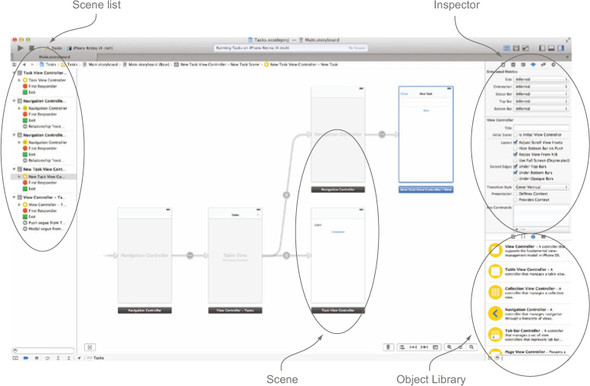
The interface editor has a few distinct sections. On the left side is the scene list. Each view controller is referred to as a view controller scene in a storyboard. All of the scenes within your storyboard are listed here.
We’ve spent more time in Xcode’s interface editor than its code editor in this chapter. The interface editor has allowed you to make many changes to specific views in the Tasks app without having to dive into the code. This just shows you how powerful a tool it is, but it also means that you need to understand what the different sections are used for. Although you’ve already used many of these sections to create your app, let’s take a closer look at each of them again.