concept landscape in category ios

This is an excerpt from Manning's book iOS 7 in Action.
Jump back into Xcode and into IAViewController.m. You’re going to add two new methods. One of them will declare the orientations that you’ll support. The other will adjust your view so that it appears different in landscape versus portrait mode. Add the two methods in the following listing to the bottom of IAViewController.m.
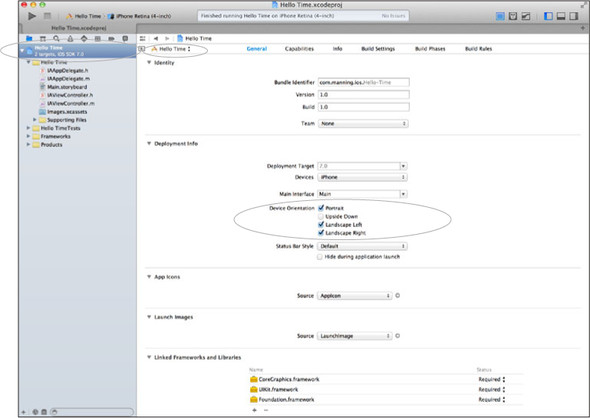
There are four different types of orientations you can choose to support: portrait, upside-down portrait, landscape left, and landscape right. In Hello Time you’re supporting three different types of orientations by default. You can see this by going to the project navigator in Xcode and viewing your target’s general settings, as shown in figure 2.20.
By default, upside-down portrait is not supported, but you can easily enable it by clicking it inside your target’s Summary tab in Xcode. By doing this, all of your views won’t automatically resize when the device’s orientation changes. You also still need to specify in each specific view controller what orientations are supported. This is because you may have certain view controllers where you would like to support only portrait and another where you may want to play video and support portrait and landscape. In Hello Time you specified which orientations you support by adding the following code using the supportedInterfaceOrientations method: