concept Swift Playground in category ios

appears as: Swift Playground
Hello Swift!: iOS app programming for kids and other beginners

This is an excerpt from Manning's book Hello Swift!: iOS app programming for kids and other beginners.

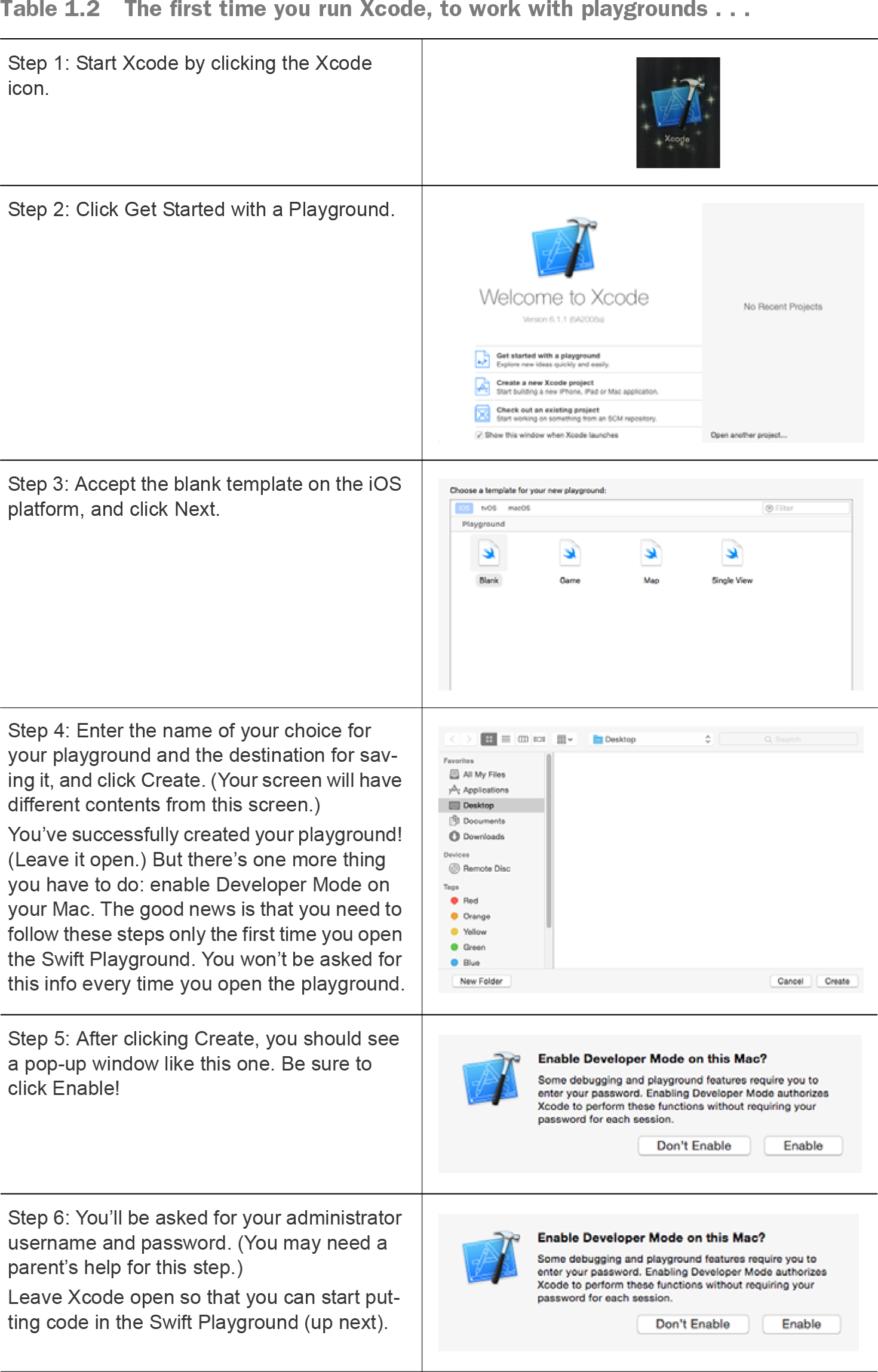
Table 1.2. The first time you run Xcode, to work with playgrounds . . . (view table figure)
Step 1: Start Xcode by clicking the Xcode icon.
Step 2: Click Get Started with a Playground.
Step 3: Accept the blank template on the iOS platform, and click Next.
Step 4: Enter the name of your choice for your playground and the destination for saving it, and click Create. (Your screen will have different contents from this screen.) You’ve successfully created your playground! (Leave it open.) But there’s one more thing you have to do: enable Developer Mode on your Mac. The good news is that you need to follow these steps only the first time you open the Swift Playground. You won’t be asked for this info every time you open the playground.
Step 5: After clicking Create, you should see a pop-up window like this one. Be sure to click Enable!
Step 6: You’ll be asked for your administrator username and password. (You may need a parent’s help for this step.) Leave Xcode open so that you can start putting code in the Swift Playground (up next).

Now that you’ve installed Xcode and run it for the first time, you’re ready to start playing with code in the Swift Playground.