concept Tab Bar Controller in category ios

This is an excerpt from Manning's book Anyone Can Create an App: Beginning iPhone and iPad programming.
The Tab Bar Controller is a powerful tool to help you build apps faster, with great-looking navigation.
In the Object Library, you can either scroll down a few rows or search on tab to find the Tab Bar Controller. Grab the object, drag it to the middle of your storyboard, and drop it.
You’ll immediately notice that this doesn’t look like the other apps you’ve built before. The Tab Bar Controller adds what appear to be three scenes on the storyboard (as shown in figure 14.2).
Figure 14.2. The Tab Bar Controller object creates multiple scenes when you add it to the storyboard.
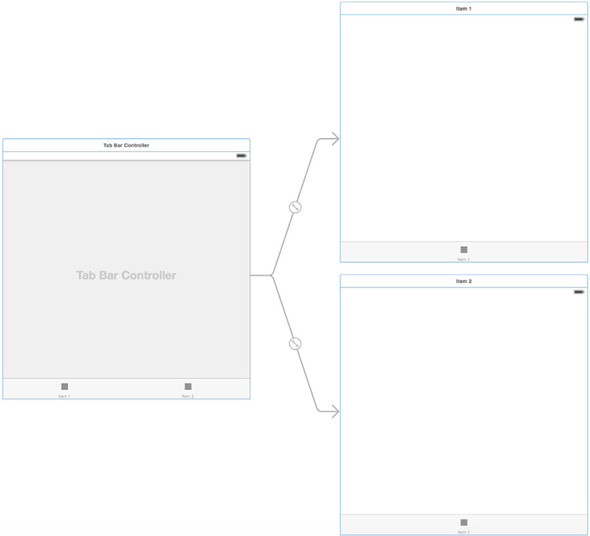
These aren’t three scenes, though, because the Tab Bar Controller is known as a container ViewController—meaning it contains other views but doesn’t display itself. The first object on the storyboard says Tab Bar Controller at the top and is grayed out, letting you know that you can’t add visual components to it. Its primary purpose is to control the two views it’s connected to, called Item 1 and Item 2.
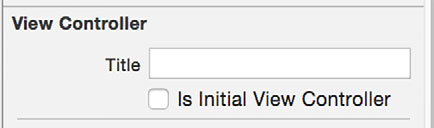
The easiest way to understand this is to run the app, but before you can do that, you need to set the initial ViewController so Xcode knows which controller to load first. Click the Tab Bar Controller (the first object) in your storyboard so it is the active object. In the Attributes Inspector, click the Is Initial View Controller check box to set it as the initial ViewController, as shown in figure 14.3.