concept user in category liferay

This is an excerpt from Manning's book Liferay in Action: The Official Guide to Liferay Portal Development.
At its most basic level, a Liferay server consists of one or more portals. Portals have users, and these users can be categorized into various collections. Some of these collections can also have web pages that compose a portion of your site.
You can define many portals per portal server, and each portal has its own set of users and user collections. Figure 1.11 displays this graphically. As shown in the figure, each portal has users, and those users can be organized into several different types of collections: roles, organizations, communities, user groups, and any combination of those collections within that portal. Table 1.1 lists the collection types Liferay offers.
Figure 1.11. A single Liferay Portal installation can host many different portals, all with separate users and content.

Table 1.1. Liferay collection types
Collection type
Description
Role Collects users by their function. Permissions in the portal can be attached to roles. Organization Collects users by their position in a hierarchy. Organizations can be nested in a tree structure. You use organizations to represent things like a company’s organizational chart. Community Collects users who have a common interest. Communities are single entities and can’t be grouped hierarchically. By default, users can join and leave communities whenever they want, although you can administratively change this so users are assigned to communities (or invited) by community administrators. User group Collects users for purposes that cut across the portal. User groups are defined by portal administrators. Roles are inherently linked to permissions. You use a role to collect users who have the same permissions. A good example is a Wiki Administrator role: this role contains users who have permission to administer wikis.
Organizations are hierarchical collections of users. Users can be members of one or many of them, up and down the hierarchy. Membership in organizations gives users access to the pages of that organization. If you picture a hierarchical structure that represents a company called Inkwell, some users might belong to Inkwell, Sales Department, Mid-Atlantic Region. This not only denotes the employees’ position in the company, but also gives employees access to the content they need to do their jobs.
Communities are ad hoc collections of users. Users can join and leave communities, and membership in communities gives them access to the pages in the communities of which they’re members. You may have a community called Photography: users of your site can join this community to share pictures.
User groups are defined by portal administrators. They’re used to collect users for purposes that tend to cut across the portal. For example, you may want to grant some users the ability to create a blog on your site. To do so, you create a user group called Bloggers and create a page template for them that contains Liferay’s Blog portlet. Regardless of these users’ membership in other collections (as part of a hierarchy of organizations or as having joined several communities), user groups provide a separate way of granting specific access to functions that don’t depend on membership in other collections or on specific portal permissions.
Liferay’s social API allows users to send other users social requests. The social-networking portlets implement this in the Summary portlet and the Requests portlet. One way to do this right out of the box is to put the Summary portlet on users’ public profile pages, where other users can see it (see figure 6.3).
Figure 6.3. If you place the Summary portlet on a user’s public profile page, it displays a link labeled Add as Friend. To Liferay, this is a social relation, so you can label it anything you like. For example, if you were doing a site for fantasy role-playing gamers, you might label the link Add as Fellow Warrior.
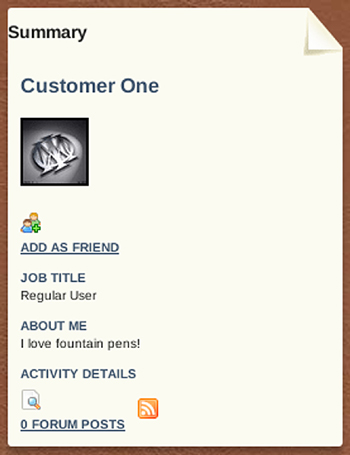
You don’t have to use Liferay’s Summary portlet; it just happens to already include a user interface for adding a social relation. You can implement any portlet you like and use Liferay’s social API the same way the Summary portlet does. But let’s continue with how relation request/relation acceptance flows, so you can get a high-level understanding of how it works before you dive in to the low level. Clicking the Add as Friend link sends a social request to that user, and the user can then choose whether to confirm that the requestee is somebody it’s worth having as a social relation.
Social requests are captured by the Requests portlet, which ships by default in Liferay. When you place it on a page, if the user has no requests, it’s invisible. When a user has a request, the portlet displays that request, as you can see in figure 6.4.
Figure 6.4. The Requests portlet shows a list of those who have requested to be a social relation. You can see their profile pictures and links to their profiles, and you can either confirm the request or ignore it.
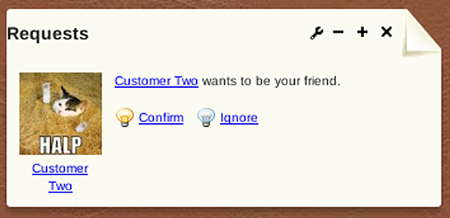
Obviously, these social portlets are designed to be placed on users’ individual profile pages. There they display information appropriate for that user. Inkwell wants to do this for its web site, so let’s delve into the configuration for Inkwell’s site. You’ll get the out-of-the-box social networking up and running first, and then you’ll modify the Product Registration portlet so that it displays activities whenever a user registers a product.
Allowing users to connect with each other on your web site will make your site more popular with your users. When users connect and interact online, they’re in control. If users are in control, they’re far more likely to participate. Users participate because of the relationships they have with other people online. If they can be free to pursue those relationships on your site, they will keep coming back. To misquote James Carville, “It’s the relationships, stupid.”[1]
Listing C.4. PitcherPortlet's view.jsp, which lets the user pitch a ball
<%@ taglib uri="http://java.sun.com/portlet_2_0" prefix="portlet" %> <portlet:defineObjects /> <p>Click the link below to pitch the ball.</p> <a href="<portlet:actionURL name="pitchBall" />">Pitch! </a> docroot/WEB-INF/pitcher/view.jsp