concept - box in category sharePoint
This is an excerpt from Manning's book SharePoint 2010 Site Owner's Manual: Flexible Collaboration without Programming.
You can create all of these sites without having to understand a single line of code, and all levels of users and developers can learn to use them. Also, if you’re using SharePoint Foundation, the license is free, which is good to know if you’re considering it for personal use. The majority of this book is focused on building out scenarios, like the ones listed here, and guiding you on how to configure these sites step by step, using the out-of-the-box functionality. Don’t worry or get overwhelmed; you can do this, even if you aren’t a techie. SharePoint is so user-friendly that after completing this book, you’ll feel like you have a computer science degree.
It’s good to understand what components are provided out of the box. Once you have a solid understanding of that, you can begin to build your own if one of these doesn’t meet your needs. In the scenarios where you build out custom sites, you typically start from a blank site template or a publishing site template. If you find that what you’d like to implement is similar to one of the out-of-the-box templates, you could always leverage one of these site templates, customize it, and save it as a custom site template based on your modifications. Before we get into site templates, let’s discuss some of the core components that make up a site: lists.

This is an excerpt from Manning's book SharePoint 2010 Web Parts in Action.
SharePoint 2010 comes with a number of Web Parts that you can use—which ones are available depends on which version of SharePoint you’ve installed. Appendix A, “Out-of-the-box Web Parts,” contains references to the most used Web Parts and their corresponding edition. Web Parts come in a couple of different types. The basic Web Part shows user tasks, the contents of a list, or a graph. Then, you have Web Parts that need customization, such as the Content Editor Web Part or Forms Web Part. For more advanced use, there are the new XSLT List View Web Part or the Data Form Web Part; both need to be configured using SharePoint Designer, and you can use them to create more advanced applications than you can using just the web browser.
A key factor in becoming a great developer is a good understanding of how end users work with the tools that SharePoint 2010 provides. As a developer, you may often be asked to build a solution or a Web Part that accomplishes a specific task. Taking advantage of the out-of-the-box features can get you up to speed faster. Sometimes, you may even end up with a solution that requires no programming and no new code.
SharePoint 2010 comes with a number of out-of-the-box Web Parts that are available for end users to use when they’re creating pages and dashboards. The Web Parts that are included reflect which version of SharePoint is installed, which site template is used, and which features are enabled on the site collections. Not all Web Parts are available through the gallery. Some, like the Data Form and the XSLT List View Web Parts, need to be added and configured using SharePoint Designer. Some you have to add manually to the gallery.
The following sections cover the most important out-of-the-box Web Parts in SharePoint. I’ve separated them into the free version SharePoint Foundation 2010 and the license-based version SharePoint Server 2010 so that you can see the differences. For a full list of Web Parts and more details, see appendix A.
This is an excerpt from Manning's book SharePoint 2010 Workflows in Action.
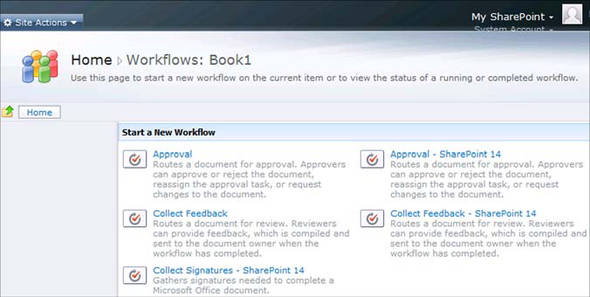
A SharePoint workflow, like the document Approval workflow, could be set up to manage the business process from start to finish. The workflow will handle all user interaction within the system. It will also manage the point of execution in the workflow. Additionally, SharePoint will provide an out-of–the-box user interface that reports on the status of the workflow, or, more specifically, who must act on the workflow before it can continue, or if it has finished executing.
This out-of-the-box experience is a compelling reason to manage your business processes within SharePoint, because it provides a user interface and other workflow fundamentals like security, reporting, and logging. These features make SharePoint workflows and your business processes a powerful combination.
This is an excerpt from Manning's book SharePoint 2007: Developer’s Guide to Business Data Catalog.
Figure 1.2 provides a master/detail view of your business data using two of the out-of-the-box web parts.
Displaying business data in web parts is probably one thing that everyone using the Business Data Catalog will want to do. The out-of-the-box web parts for the Business Data Catalog have been well thought out and are really functional. But most people we’ve spoken with don’t realize how simple it is to customize those existing web parts. There’s so much more functionality that we can add to them without writing any code, simply using Microsoft Office SharePoint Designer. If you still can’t get the results you’re after, you can create your own custom web parts that present the business data in your own way. We’ll learn this in chapter 9 of this book.
Microsoft Office SharePoint Server 2007 Enterprise Edition (MOSS) ships with numerous Business Data Web Parts that enable us to display business data in various formats, and provide an interface to the entity actions. In chapter 2 of this book, we learned how to configure entities, associations, actions, and filters. This is where all of that stuff comes into play! The most commonly used web part from the Business Data Catalog Web Parts is the Business Data List, which displays business data in a data grid format. Others include web parts that display data in a columnar format (one row at a time). Also included are web parts specific to Profile pages, which we’ll be discussing in this chapter. One of the most versatile web parts is the Data Form Web Part that ships with Microsoft Office SharePoint Designer. We’ll use this web part to connect to our business data, as it allows for more customization than the Business Data List Web Part. In this chapter, we’ll explore all of the Business Data Catalog Web Parts that come with MOSS Enterprise, and we’ll explore the Data Form Web Part in SharePoint Designer. First, let’s explore the purpose of the out-of-the-box web parts.