concept simulator in category swift

This is an excerpt from Manning's book Hello Swift!: iOS app programming for kids and other beginners.
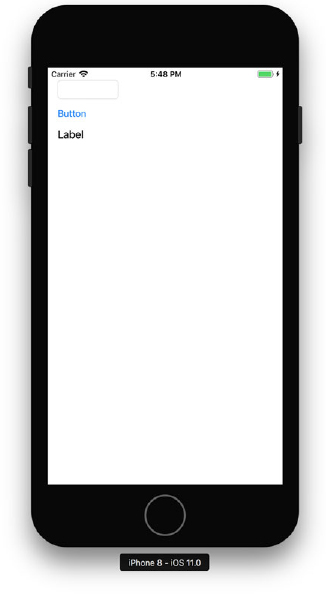
A simulator is a lookalike of a real iDevice that can run on your Mac. You can use it to do basic app testing. A simulator is included with Xcode.
A simulator is a computer program that lets you run your iOS apps on your Mac, as if you’re running them on your iDevice so you can test them. But because your computer’s screen isn’t a touchscreen, you can’t test touch actions (multigesture actions). You can use your computer’s mouse to perform simple touch actions. Features that use iDevice hardware (such as the camera and the microphone) aren’t available either.
Here are a few more things that you won’t be able to test with the simulator:

This is an excerpt from Manning's book iOS Development with Swift.
Simulators make testing your app in a variety of different environments, and even iOS versions, as easy as choosing an option in a menu. The simulator is indispensable for getting quick feedback as to how your app looks and operates in different device environments.
Though hardware-specific features such as accelerator and gyroscope aren’t available on the simulator, other features are available either in the Simulator menu or as keyboard shortcuts.
When you open the Simulator and select the Hardware menu, you’ll find several actions available that would otherwise be difficult to perform on a simulator, such as rotating the device, shaking the device, or tapping the device’s Home button. You can connect your Mac’s keyboard in the Hardware menu for convenience rather than using the simulator’s software keyboard. You can even simulate two fingers in the simulator by holding down Alt (great for simulated pinching).
Run your app in the simulator now. Leave the scheme and the simulator at their defaults and select the Play button. You should see the objects you created in Interface Builder appear in the simulator. Success, you’ve made your first (albeit basic) app! See figure 1.16. (Depending on your Mac’s screen resolution, you may need to reduce your app’s scale in the simulator’s Window menu to see it all at once.)