`align-items` is a Flexbox container property for lining up all its flex items along the cross axis. Think of Flexbox as arranging items on two tracks: `justify-content` handles the main axis, while `align-items` handles the other one. It is the handy tool for making a row of differently sized items sit at the top, bottom, middle, or stretch to fit. section 12.2 section 12.7
Set the property on the element with `display: flex`, not on each individual item. Its default value is `stretch`, so flex items expand along the cross axis to fill the container unless another alignment is chosen. No declaration is needed when stretching is exactly what you want—CSS has already clocked in for that shift. section 12.2 section 12.6
Choose one of these values for the container:
- `stretch` expands each item along the cross axis to fill the container; it is the default. section 12.2
- `flex-start` places items at the beginning of the cross axis, and `flex-end` places them at its end. section 12.2
- `center` puts items in the middle of the cross axis. section 12.2
- `baseline` lines items up using the baseline of the first line of text in the flex container. section 12.2
Figure 12.5 The align-items values in action
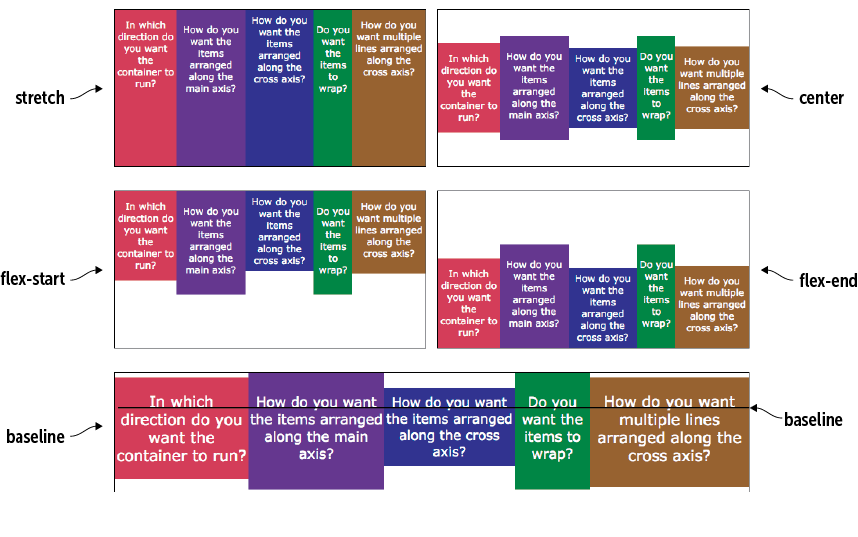
Compare the five values visually. The container outline makes the important part clear: alignment happens inside the container’s cross-axis space. section 12.2
Dead-center one item
To center an `h1` both across and down the browser window, make its parent a flex container, give that parent the viewport height, then use `justify-content: center` and `align-items: center`. The first property centers on the main axis; `align-items` supplies the vertical half of the trick when the main axis is horizontal. section 12.3
div {
    display: flex;
    justify-content: center;         #1
    align-items: center;             #2
    height: 100vh;                   #3
}
This compact rule set turns a `div` into a full-window flex container and centers its heading on both axes. section 12.3
In page layouts, `align-items: center` keeps header logos, titles, and navigation content centered vertically. The default `stretch` can also make neighboring flex items the same height, which is useful for a full-height sidebar without extra CSS tricks. For a single item that needs different alignment from its siblings, use `align-self` instead. section 15.6 section 12.6 section 12.7



