Animation changes visual states over time to communicate movement, activity, or interaction. It is an enhancement, not a requirement: an interface should remain usable when motion is absent. Used well, motion makes actions clearer, adds delight, and can make an experience memorable; used poorly, it can distract, exclude, or obstruct users. section 7.0
Start with a reason rather than adding motion for its own sake. Match its tone to the product and users’ emotional context: a subtle hover or color change may fit a sensitive healthcare service better than constant, playful movement. Animation should support the user’s goal and the brand, not compete for attention. section 7.1 section 7.2
Use animation to help people understand what is happening:
- Guide a user flow or demonstrate a control’s function with a clear visual cue, alongside fundamentals such as contrast. section 7.1.1
- Confirm interaction and outcome: hover states can acknowledge input, while a shaking login form can signal a failed password before the user searches for an error message. section 7.2.2
- Show ongoing status with a loading indicator, pulsing skeleton content, or progress bar when a page, upload, payment, or form submission takes time. section 7.2.4
- Add restrained decoration that creates ambiance or emotional response without pulling attention from primary content. section 7.1.3
Feedback and delight in a form
A login form can animate in response to the field being used, then celebrate successful submission. The Yeti login interaction tracks mouse movement and changes state as the form is completed, combining functional feedback with a playful, memorable moment. section 7.1.2
Figure 7.1 Yeti login form animation by Darin Senneff showing the Yeti in different stages depending on what part of the form you’re filling out. (Courtesy of Darin Senneff)
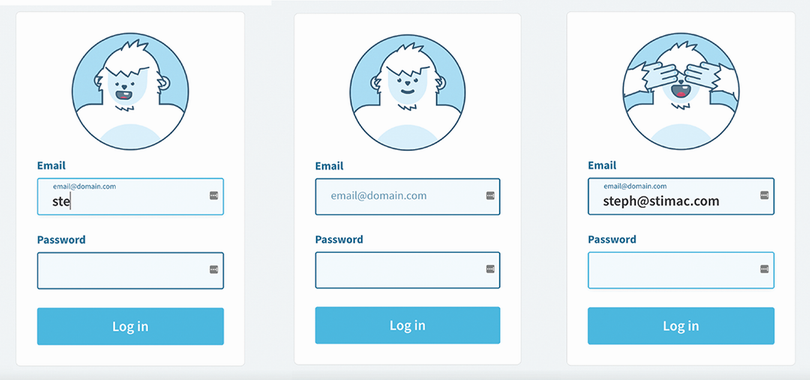
Compare the Yeti’s changing form states to see how animation can respond to a user’s progress through an interaction. section 7.1.2
Plan motion before coding with a storyboard: a cheap, low-fidelity sequence of panels showing the start, middle, and end. For an animated button, sketch its resting state, its hover state with arrows showing movement, and its final pressed or successful state. This makes the intended behavior easier to discuss, approve, and implement before polished code becomes costly. section 7.3 section 7.3.1
Treat performance and repeat use as design constraints. Excessive motion can overwhelm people or devices, consume data, and slow an interface. Let users with low bandwidth disable immersive animation, avoid replaying experience-blocking sequences for returning visitors, and test prototypes with users to learn whether motion helps or annoys. section 7.2.5 section 7.4
For CSS animation, prefer opacity and transform when possible. Animating width, height, font size, color, margin, or position can require browser recalculation, repainting, or layout changes and may produce jank. Any performance cost should be justified by meaningful feedback or delight. section 7.4.1