Azure Portal is Azure’s web-based graphical interface for administering cloud services and resources. Open https://portal.azure.com after creating or selecting an Azure account; a free account includes introductory credits for experimentation. section 12.2.1 section 7.3.3
For deployment work, the portal turns infrastructure setup into guided configuration. Selecting Virtual Machines and choosing Create > Azure Virtual Machine opens a wizard organized into Basics, Disks, Networking, Management, Monitoring, Advanced, and Tags. section 12.2.2
A practical VM setup typically includes:
- Choose the active subscription, create a resource group, name the VM, select a nearby region, and configure the image and architecture. section 12.2.2
- Use Windows Server 2022 Datacenter: Azure Edition - Gen 2 with X64 architecture for the demonstrated Windows VM. section 12.2.2
- Consider Azure Spot pricing for unused capacity, while recognizing that Azure may evict these VMs when capacity is needed. section 12.2.2
Creating a deployment VM
From the portal dashboard, search for virtual machine, select Create, and configure a resource group such as Manning, a VM name such as MyBGList-Win-01, a nearby region, and the required image and login settings. Review the configuration before deployment. section 12.2.2
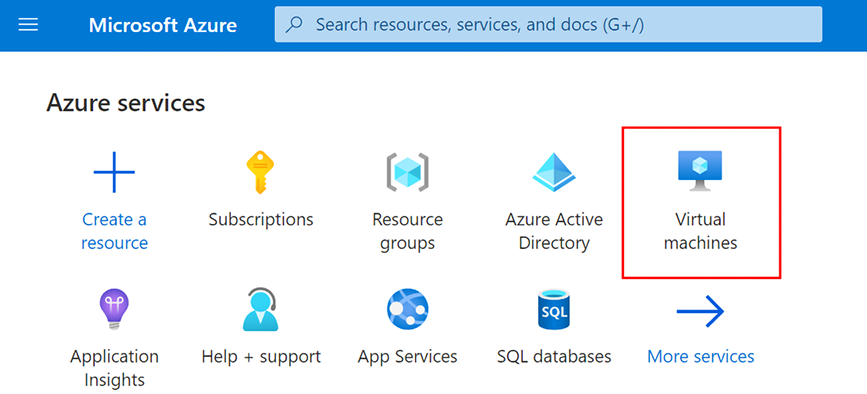
Use the VM creation figure to follow the portal navigation from the dashboard to the virtual-machine configuration workflow. section 12.2.2