Need somewhere to keep a PDF, an image, or an email attachment without designing a database table for it? A blob—short for binary large object—can hold text or binary data in Azure Blob Storage. Blobs live inside containers, which live inside a storage account: storage account → container → blob. section 5.3 section 2.2.7
Figure 2.13 Storage account hierarchy: blobs inside containers inside a storage account
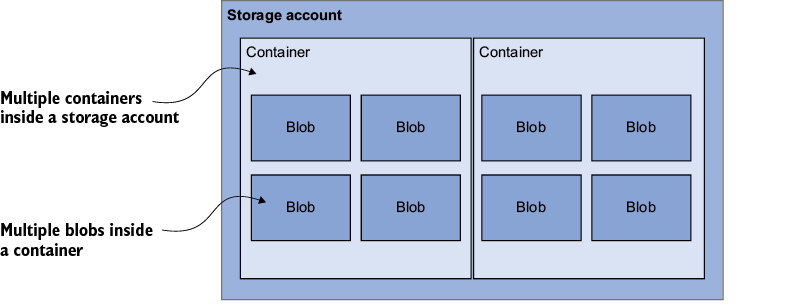
The diagram shows where a blob belongs within its container and storage account. section 2.2.7
Choose a blob type to suit how the data will be used:
- Block blobs hold text or binary data. They are the usual choice for files; uploading a single file creates one. section 5.3.3
- Append blobs add blocks at the end, making them suitable for a continuous log. section 5.3.3
- Page blobs support frequent reads and writes to 512-byte pages; virtual machine disks are a typical use. section 5.3.3
From email to blob
A Logic App can take attachments from an email trigger and use a Create Block Blob action to save them in a chosen container. Selecting attachment content makes the action repeat for each attachment—handy when an email brings more than one file. section 2.2.12
PS C:\> Set-AzStorageBlobContent -File "C:\books\bannedbook.pdf"
-Container bannedbooks -Blob "bannedBook.pdf"
-Context $storageContext.Context -StandardBlobTier Hot
This PowerShell command uploads a PDF as a named block blob to a container, using an existing storage context and the Hot tier. section 5.3.3
Before filling a container, choose its public access level deliberately. Private requires authenticated access; Blob permits anonymous access to individual blobs; Container permits public access to container data. Keeping track of container names matters, too: unlimited containers are less useful if nobody can find the right blob. section 2.2.7