Browser developer tools, often called the Inspector or Dev Tools, are built into most browsers. They let you look behind a web page’s finished appearance to see its HTML and CSS, then experiment with visual changes directly on the page. This makes them useful for learning how a design is assembled and for trying a change before editing site files. section 7.2.5 section 7.3
Figure 7.6 Here you can see quite a few details about this web page.
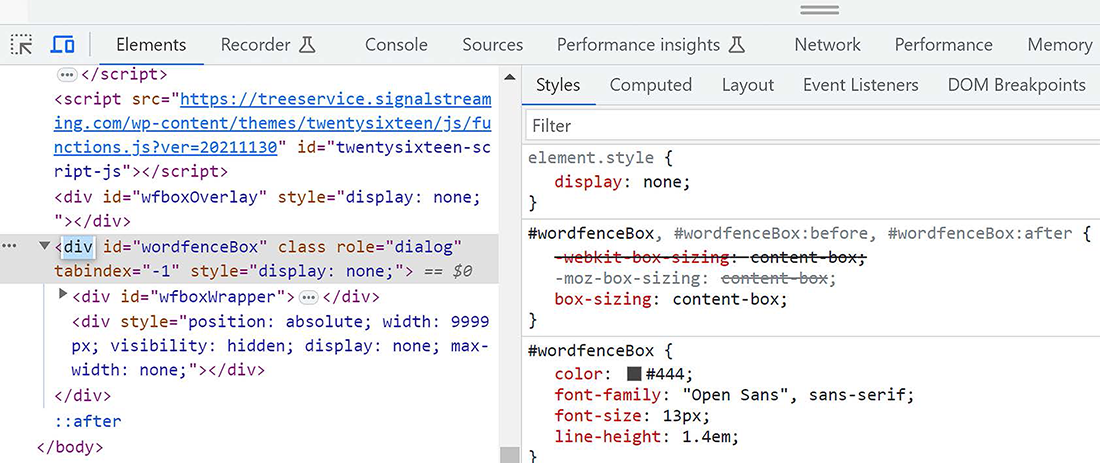
A typical Inspector separates the page’s structure from its styling: select an HTML element in the left pane, then examine its associated CSS in the right pane. section 7.3
Use the Inspector to investigate a page in a few practical steps:
- Open it while viewing a page: right-click the page and choose Inspect from the context menu. section 7.3
- Select or double-click an HTML element in the HTML pane to identify the part of the page you want to understand. section 7.3
- Read the Styles pane to see the CSS rules applied to that element and why a visible style is taking effect. section 7.3
- Watch for crossed-out CSS properties: a line through a property means another occurrence later in the cascade overrides it. section 7.3
- Live-edit a CSS value in the Styles pane and immediately inspect the visual result, without changing source files. section 7.3
Finding an unexpected text style
If a heading appears with the wrong size, color, or font, select its HTML element and inspect the rules shown in the Styles pane. A crossed-out declaration is not controlling the display; a later rule in the cascade has overruled it. Change a value temporarily to test a replacement, then carry the successful change into the site’s actual CSS workflow. section 7.3 section 7.2.5
The tools extend beyond page design. They can simulate responsive layouts, list network requests and timing, support JavaScript debugging, and help analyze page-load performance and execution bottlenecks. For visual design, their central value is an interactive way to connect HTML structure, CSS rules, and the rendered page. section 7.2.5 section 7.9
You do not need to master CSS before using an Inspector. Treat it as a safe observation and testing space: inspect an element, make one small temporary change, and compare the result with the page you intended to create. Visual tools such as sliders and color wheels can generate CSS elsewhere, but the Inspector remains useful for seeing how that CSS interacts with HTML. section 7.3 section 7.9

