A data label is text placed with a visual element to state the value or other information the reader needs. It can be the final verbal nudge after a title and chart have made the point visually, reinforcing the message rather than making people hunt for it. section 6.1.5
Labels are not a sign that a visualization has failed to be intuitive. They give people necessary information upfront—especially information essential to understanding—and can prevent a chart from becoming a small puzzle with no prize at the end. section 7.2.3
Decide what belongs directly on the display by asking:
- Is this information required to understand the main story? Put keystone information in a label rather than hiding it behind interaction. section 7.2.3
- How much time does the audience have? For people who need answers quickly, favor more visible labeling. section 7.2.3
- Is the detail secondary context? Reserve supporting facts for a hover or tooltip when the main point remains visible without them. section 7.2.3
- Does the typography signal the intended importance? Reuse font size, style, and placement consistently for labels with the same role. section 5.4.5
Labels can also confirm that an interaction worked. Changing a title or label’s text, moving a highlight, or changing font styling can show which data is active; keep that feedback visible near where the interaction occurred. section 7.1.3
Label the answer; hover for context
For survey-response bars, put the number of people who gave a response directly in a label when that number is the point. Put the total surveyed and percentage in a tooltip for readers who want the extra context. section 7.2.3
Figure 7.9 If the main point is that X number of people gave a certain response on a survey, you could put that X in a label, and then, if you want to give more context, such as the total number of people surveyed and the percentage who’d chosen that response, you could put that secondary information in a tooltip. This way, users will get the main idea, but when they want to know a little more, then all they need to do is hover on each bar.
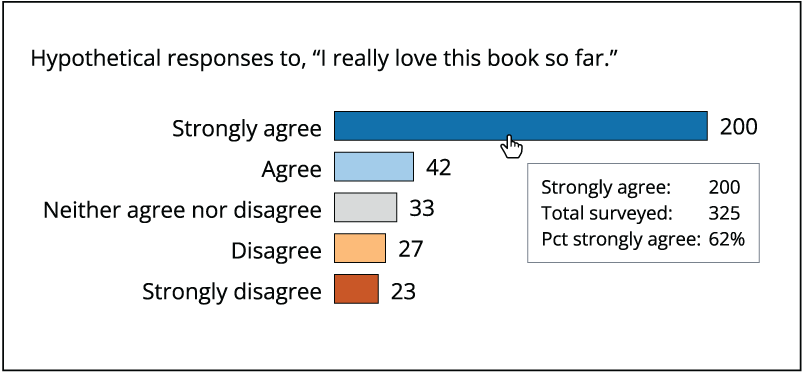
Compare a visible response count with supporting survey details placed in a tooltip; the split keeps the main takeaway available without interaction. section 7.2.3