Dev UI is Quarkus’s browser-based interface for inspecting and interacting with an application running in Dev mode. It makes framework-level details visible while you develop, and some of its troubleshooting views can spare you a trip to the debugger. section 3.3 section 3.6
With the application running in Dev mode, open http://localhost:8080/q/dev-ui or press d in its terminal. The Extensions landing page shows a card for each active Quarkus extension, with controls where that extension supplies Dev UI features. The server log appears below the cards. section 3.3.1
Figure 3.3 Examples of Dev UI cards. Each extension has its own card and can contribute various pages to the Dev UI.
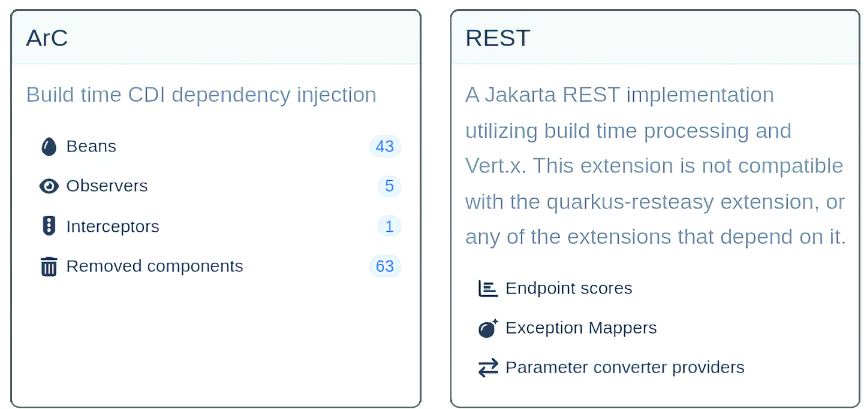
The extension cards show why the available Dev UI controls depend on the extensions active in the application. section 3.3.1
Useful development tasks include:
- Inspect configuration keys and values, including defaults. The Configuration panel lists properties understood by active extensions, application-specific properties, JVM system properties, and environment variables; edits to writable properties are reflected in application.properties. section 3.3 section 3.3.1
- Inspect CDI beans, their interceptors and priorities, and beans excluded as unused; view JPA entity-to-table mappings when applicable. section 3.3
- Act on development state by wiping development-database data or manually triggering a scheduled task. section 3.3
Checking an OIDC login
Add the quarkus-oidc extension with `quarkus extension add oidc`. In Dev mode, Dev Services starts a Keycloak container, which requires Docker or Podman. Use Dev UI to obtain a security token, then send it as a bearer token to an endpoint that reports the logged-in user. The container startup is specific to this development workflow; it can also occur in test mode unless OIDC is disabled for tests. section 3.4.1
For tests, open Continuous Testing in the left menu. Start testing if needed, use Run all to rerun the suite, and select a failing test to inspect its details. These graphical controls complement the terminal controls; JUnit tests still run during a normal Maven build and produce conventional reports. section 3.5.1
Dev UI is extensible rather than a fixed collection of screens. An extension can contribute information, a testing playground, or controls that change its behavior, so the tools you see depend on the extensions installed. section 3.3 section 12.1.7