Django Debug Toolbar is a development-server overlay that exposes what happens while Django builds a response. It helps turn a vague complaint such as “this page feels slow” into evidence about execution time, SQL queries, HTTP requests, templates, and other resources. section 13.0 section 13.6
Install and configure it as a Django app:
- Install the package with python -m pip install django-debug-toolbar. section 13.1
- Ensure django.contrib.staticfiles is installed, STATIC_URLS is configured, and APP_DIRS is True in TEMPLATES. section 13.1
- Add debug_toolbar to INSTALLED_APPS and debug_toolbar.middleware.DebugToolbarMiddleware to MIDDLEWARE, placing the middleware as high as possible after encoding middleware such as GZipMiddleware. section 13.1
- Add path("__debug__/", include("debug_toolbar.urls")) to urls.py and add 127.0.0.1 to INTERNAL_IPS. section 13.1
After configuration, run the development server and visit a page such as /bands/musicians/. A callout appears on the right, containing panels that report different parts of request processing. The panels can be customized, and third-party additions are possible. section 13.1
Figure 13.1 Django Debug Toolbar on the musician listing page
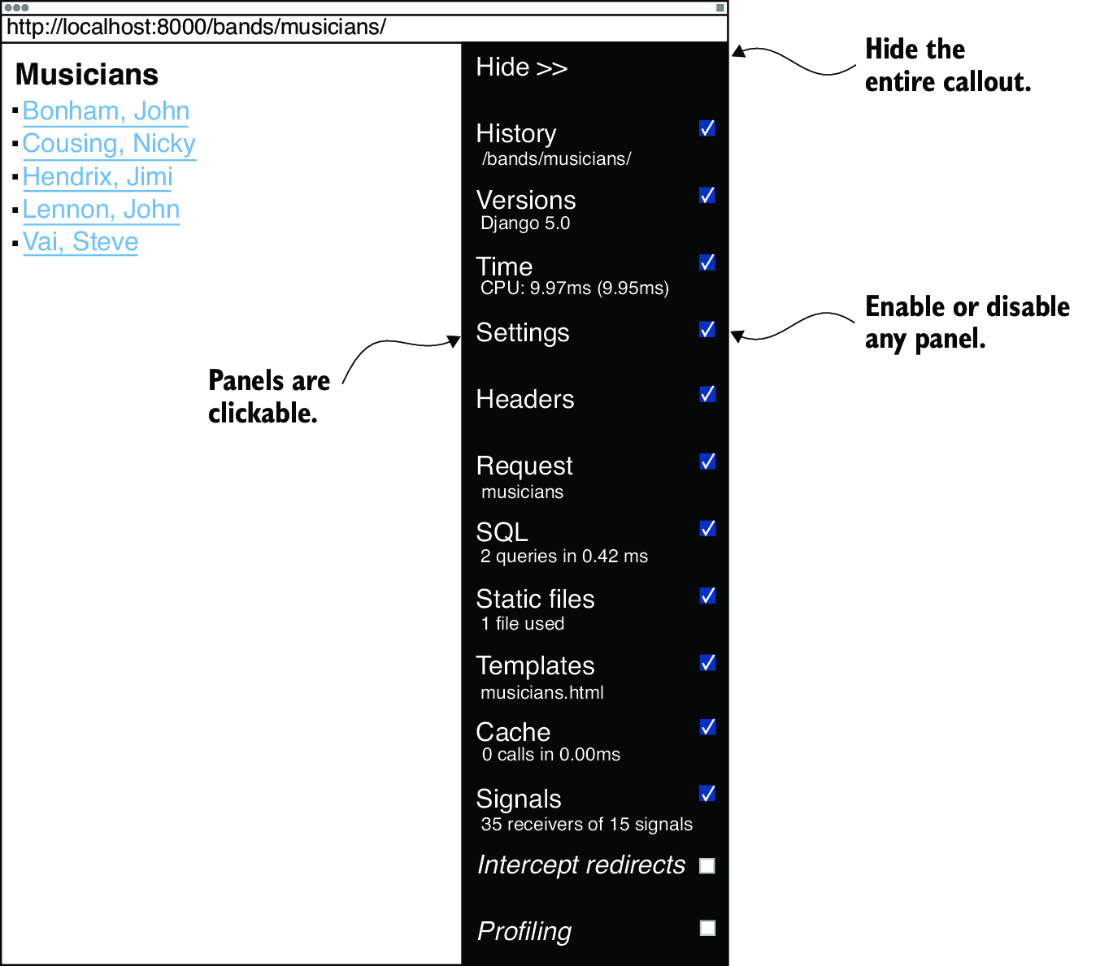
Use the musician-listing screenshot to recognize the toolbar overlay and its position on a rendered Django page. section 13.1
Table 13.1 Django Debug Toolbar panels
|
Panel
|
Description
|
|---|---|
|
History
|
History of requests made, which also includes the ability to view the debug info for past visits
|
|
Versions
|
Shows the versions of Django, Python, and installed apps (if possible)
|
|
Timer
|
Shows page load time information, including CPU time, system time, and a graph showing the timing for each step in processing the page
|
|
Settings
|
Shows your current project configuration values
|
|
Headers
|
Request and response headers along with WSGI environment information
|
|
Request
|
Information about the HTTP request, including the view function invoked, any cookies, session data, and data for the GET or POST
|
|
SQL
|
SQL queries run to get the page’s data along with timing information
|
|
Static files
|
Information on the static files used on the page along with all the possible files available to the {% static %} tag
|
|
Templates
|
Shows the template path and all templates involved in rendering this page
|
|
Cache
|
Whether the cache got used along with hit-and-miss counts and response times
|
|
Signals
|
All the Django signals registered and their associated handlers
|
|
Intercept redirects
|
If a page issues a redirect, the toolbar catches it and shows a page with the resulting link (panel off, by default)
|
|
Profiling
|
Complete profile information on the request, including all the functions called and their timings (panel off by default)
|
Use the panel table as a quick map from a symptom to evidence: Timer covers processing time, SQL covers database queries, Request covers HTTP and view details, and Templates and Static files cover rendering resources. section 13.1
Investigating a slow page
Open the page, inspect the Timer panel for load and processing information, then inspect SQL for query timing. Use Request to check the invoked view and request data, and Templates or Static files to examine rendering resources. This combination supplies concrete clues instead of relying on guesswork. section 13.6 section 13.1