An HTML tag is a short code in angle brackets that tells a browser what to do with part of a web page. Think of tags as small labels attached to plain text: they can mark a paragraph, create a heading, insert an object, or help build a link. The browser reads the labels and renders the result instead of displaying the tags themselves. section 1.1 section 2.16
A typical opening tag has three pieces: a left angle bracket, an element name, and a right angle bracket. For example, <h1> names a first-level heading, <p> names a paragraph, and <em> names emphasized text. “Element” means the HTML item, such as h1; “tag” means that name plus its brackets, such as <h1>. section 2.1
Figure 2.1 The structure of a typical HTML tag
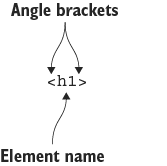
Use this diagram to spot the three pieces of an opening tag before putting one to work. section 2.1
Most tags need a partner: an opening tag starts an element, and a closing tag tells the browser where it ends. The closing version repeats the name but adds a forward slash. Together, the pair forms a container for text or even other elements. No mysterious wizardry—just clear start and stop signs. section 2.1 section 2.16
A heading with boundaries
<h1>How New Words Are Created</h1> turns the words between the tags into the page’s main heading. The opening <h1> begins the heading; the closing </h1> ends it. Put ordinary text between <body> and </body> when you want it to appear in the browser’s content area. section 2.1 section 2.7
Tags provide the page’s basic structure and content signals:
- Use heading tags from <h1> through <h6> to create visual hierarchy. section 2.16
- Use <strong> or <b> for important text, and <em> or <i> for emphasis or alternative text. section 2.16
- Surround link text with <a> and </a>, then use the href attribute in the opening tag to name a file or URL. section 2.16
- Build a page’s broad frame with tags such as <head>, <title>, <style>, and <body>. section 2.16
Tags handle structure; CSS handles styling. Extra spaces, tabs, and line breaks are not reliable tools for arranging content because browsers generally ignore that whitespace. If you want a real paragraph or heading, use the appropriate HTML tag rather than hoping the keyboard layout survives the trip. section 2.7 section 1.1
Start small and play: type a tag in an HTML editor, add any required attributes, inspect the browser result, then adjust the code and try again. Tags begin as a few short codes, but they can grow into the bare-bones structure of a personal home page, landing page, or portfolio. section 1.5 section 5.7 section 20.7



