justify-content is a Flexbox container property that arranges flex items along the main axis. Think of the main axis as the line the items are standing on: left-to-right for a row, or top-to-bottom for a column. Set flex-direction first, then use justify-content to decide where the group—and any spare room—goes. section 12.2
Figure 12.4 The justify-content values at work
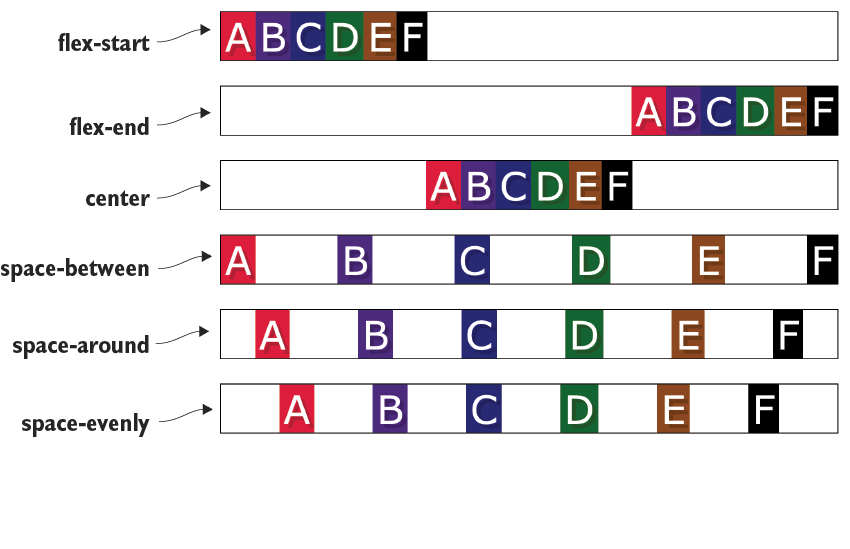
Compare the values side by side. The outline makes the container boundary visible, which is the sneaky part: justify-content distributes items inside that boundary. section 12.2
Use one of these values on the flex container:
- flex-start puts items at the beginning of the main axis. It is the default, so you can usually leave it unstated. section 12.2
- flex-end puts items at the end; center places them in the middle. section 12.2
- space-between pins the first item to the start and the last to the end, sharing the space between the remaining items evenly. section 12.2
- space-around gives most items equal space on both sides, while the outer items receive half-space at the container edges. section 12.2
- space-evenly gives every item the same space on either side, including at both container edges. section 12.2
PLAY: Center a message in the window
To center an h1 horizontally, make its parent a flex container and set justify-content: center. To center it vertically too, add align-items: center. Giving the parent height: 100vh makes it as tall as the browser window—no ancient CSS centering rituals required. div { display: flex; justify-content: center; align-items: center; height: 100vh; } section 12.3
REMEMBER: justify-content handles the main axis; align-items handles the cross axis. With a normal row, that usually means justify-content moves items horizontally and align-items moves them vertically. Change the direction, and the axis changes too. section 12.2 section 12.7
Make a gallery row breathe
A row of portfolio images can use space-between to push the first image to one side, the last to the other, and share the leftover horizontal space between them. .portfolio-images { display: flex; justify-content: space-between; } section 20.5
Centering is useful beyond a one-item demo. A gallery header can center a logo and title, while its navigation area can center its links by making each area a flex container and setting justify-content: center. section 15.6



