Lighthouse is a quick audit tool for checking the quality of a web page. It returns a narrative report and a 0–100 score across Performance, Accessibility, Best Practices, SEO, and Progressive Web App (PWA) categories, giving you a practical list of improvements to investigate. section 11.3
Use a Lighthouse audit to turn a general concern about a site into specific checks:
- Review Performance for page-load efficiency, including load time and interactivity, and use the report’s suggestions to find ways to speed the page up. section 11.3
- Review Accessibility for navigability, screen-reader compatibility, image Alt Text, and usable semantic HTML structure. section 11.3
- Review Best Practices for concerns such as secure resource loading and correct HTML-tag use; the report identifies where practices are violated. section 11.3
- Review SEO for technical elements such as structured data and responsiveness that affect search-engine and AI ranking. section 11.3
Check a WordPress theme before relying on it
After activating a theme, open the site’s frontend in Chrome. Press Ctrl+Shift+I, or right-click and choose Inspector, then select Analyze Page Load. Scroll to the Accessibility analysis to see its score and reported issues. A report may flag weak text/background contrast or buttons and links with poor descriptions. Treat those findings as a starting point: automated accessibility testing cannot detect every accessibility issue. section 8.6.2
Lighthouse is especially useful while choosing or refining a theme because it connects technical checks to visible visitor experience. Semantic elements such as nav, article, and section can clarify a page’s structure for screen readers, search crawlers, and AI systems; accessibility diagnostics can help identify places where that structure, descriptions, or navigation need attention. section 11.3 section 8.6.2
You’ll get a quick report on the quality of various elements of your site when you use the Lighthouse tool.
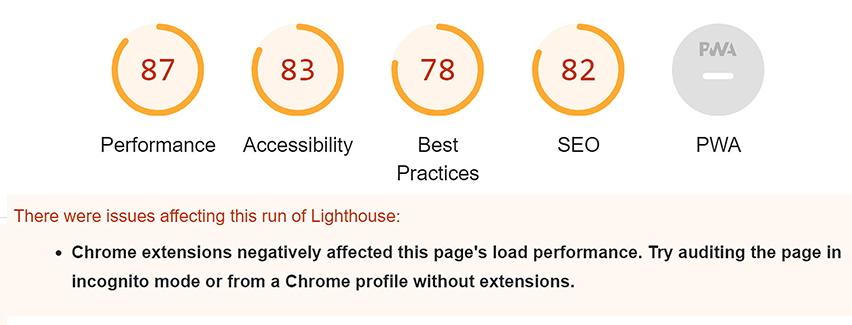
Use the report overview as a quick quality snapshot before opening individual category findings and deciding what to improve first. section 11.3
