The line-height property controls the height of each invisible line box around text. Think of it as the vertical breathing room between lines: too little creates a cramped mess, while too much makes paragraphs wander apart. The term leading, pronounced “ledding,” means the same thing. section 18.7
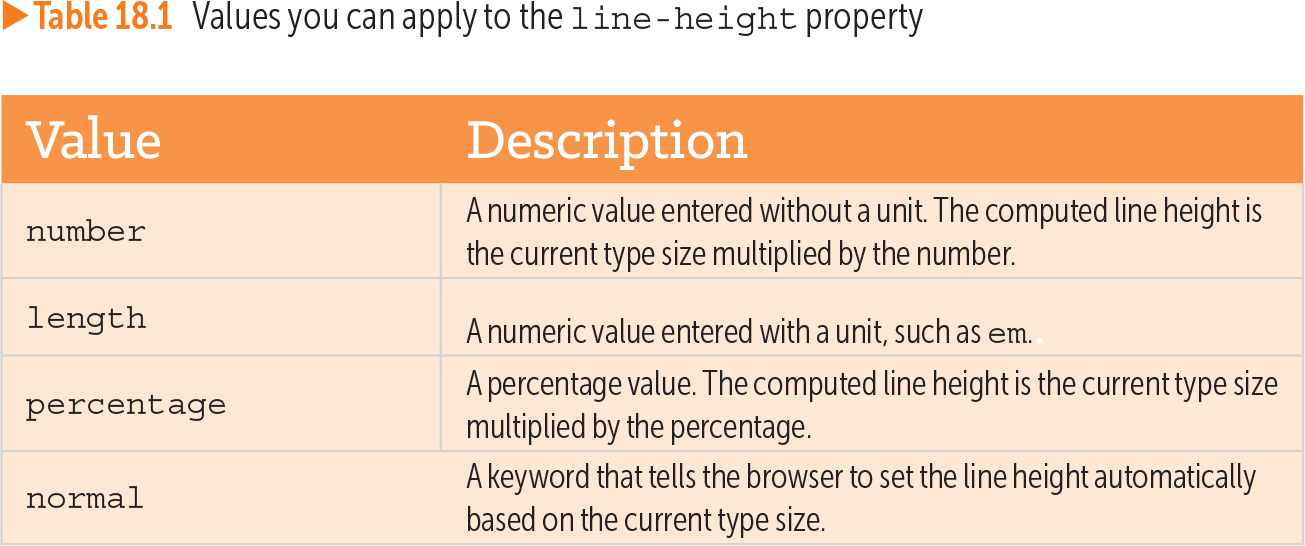
Table 18.1 Values you can apply to the line-height property (view table figure)
| Value |
Description |
|---|---|
| number |
A numeric value entered without a unit. The computed line height is the current type size multiplied by the number. |
| length |
A numeric value entered with a unit, such as em.. |
| percentage |
A percentage value. The computed line height is the current type size multiplied by the percentage. |
| normal |
A keyword that tells the browser to set the line height automatically based on the current type size. |
Choose a unitless number, a length, a percentage, or normal. A number or percentage is calculated from the current type size; normal lets the browser choose automatically. section 18.7
Compare the spacing
p { font-size: 1.5em; line-height: 0.9; } A value of 0.9 creates tight leading. Try 1.4 for normal leading, or 1.75 and higher for loose leading. Around 1.5 often gives comfortable reading, while 0.75 is cramped and 2.25 is overly spread out. section 18.7
Use line-height to make text easier to read and to tune headings that wrap:
- Give body text enough room between lines, but avoid spacing so loose that the paragraph loses cohesion. section 18.7
- For a long h1 that wraps onto two lines, try a value below 1, such as 0.8 or 0.9, to bring the lines closer together. section 5.5