A menu item is a short, clickable label that helps visitors move through a website. Main menu items represent the site’s broadest topics; submenu items lead to more specific child pages. A clear menu lets people reach the content they want with few clicks, without filling every page with a long list of choices. section 3.3.5
Keep labels brief and meaningful. Do not repeat words already made obvious by the site title. On a recipe site titled “Time Tested Recipes for the Instant Pot,” labels such as “Mexican” and “Thai” are clearer than “Mexican Recipes for the Instant Pot.” Put Home at the far left, and make the site title or logo return visitors to the home page too. section 3.3.5 section 3.6.2
Build and refine a menu in this order:
- Create parent pages for the main topics and child pages for supporting topics. Placeholder child pages can be created before their content is written. section 3.6.1
- Add the pages to the menu, then arrange the broad topics as main items. section 3.6.1
- Turn an item into a submenu item by dragging it slightly right until it is indented beneath its parent. If dragging is difficult, open the item controls and use Move Under. section 3.6.2
- Rename navigation labels for quick scanning, save the menu, and view the public site to check the result. section 3.6.2
- Click every link to confirm that it reaches a real destination rather than a Page not found error. section 3.6.2
Example: simplifying a fishing-site menu
Several related items can become one main menu item with subitems: Latest News, Pro Tour News, and Dock Talk fit under News; Schedule, Results, and Standings fit under Tournaments. Less frequently used choices, such as Sign In/Join Now, can move to a footer or another location. When two labels cover similar content, combine or remove one rather than making visitors choose between duplicates. section 3.3.6
A menu does not need to show every page at the same level. Use main items for general destinations and submenus for supplemental detail. Themes may visually identify the current page and show arrows beside items that contain child pages, giving visitors useful navigation cues. section 3.3.5 section 3.6.2
If the menu feels crowded, ask an AI assistant to suggest items that could be grouped, demoted, moved to a sidebar, or omitted. Treat the suggestions as a starting point: decide based on what visitors need most often and whether the proposed groups match the site’s content. section 3.3.6
Figure 3.20 To create a child menu (submenu) item, drag the child over one tab and drop it there.
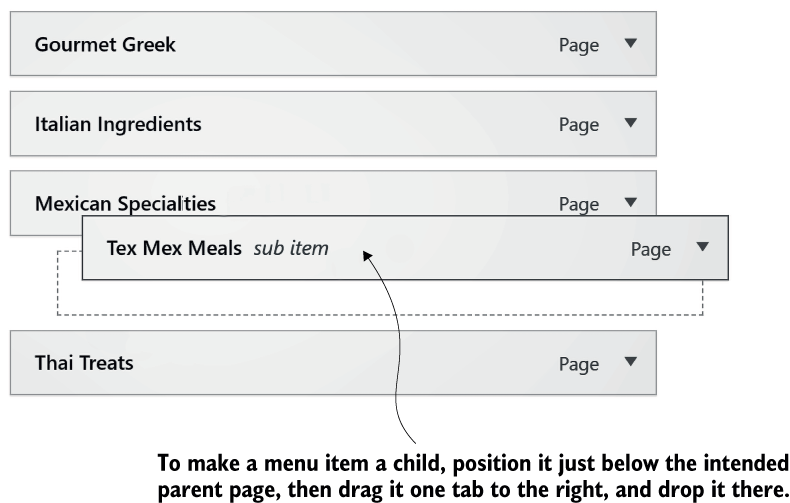
Use the drag target as a visual guide when placing a child menu item under its parent. section 3.6.2