MySQL Workbench is the desktop tool used to connect to a MySQL database, enter SQL in a Query panel, run it, and inspect the returned results. Think of execution as clicking Send: the database receives the instruction, completes it, and sends back an answer. Before running anything, check the connection tab and selected schema so the query targets the intended database. section 1.4.1 section 2.3
Figure 2.6 The MySQL Workbench open with our Month of Lunches connection, with administration information shown in the Navigator panel. We enter queries like the one we just wrote in the Query panel.
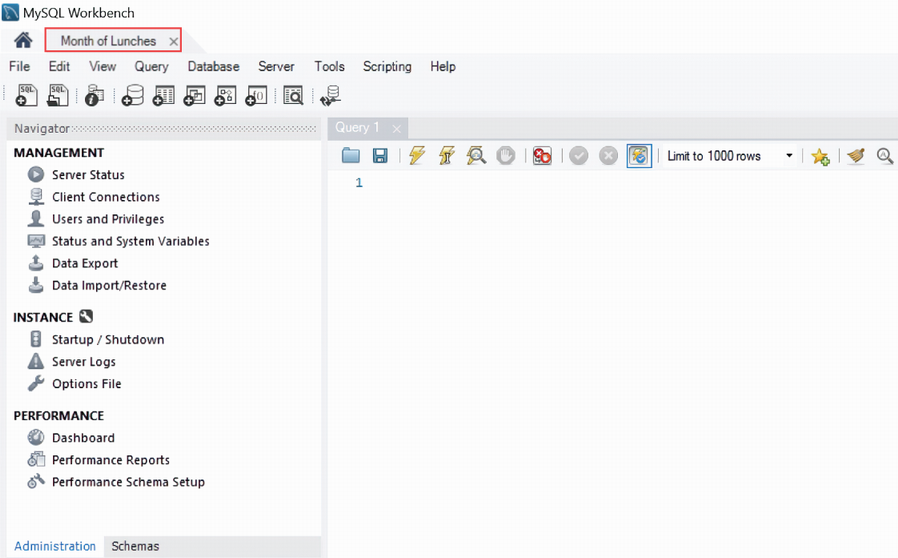
The connection tab identifies the active connection; the Query panel is where SQL is entered, while the Navigator exposes administration and schema views. section 2.3
To run a query, open the connection, select the desired default schema, type a complete statement in the Query panel, and execute the selected SQL. The plain lightning-bolt button runs the selection; Ctrl+Enter does the same job. Results appear separately from the editor, making it easier to distinguish the instruction from its output. section 2.3
Run a first query
Enter `SELECT Outcome FROM MyFirstQuery;` in the Query panel and execute it. The Result panel displays `Hello, World!`; the Output panel indicates success and records details such as the executed query, returned rows, and duration. End statements with a semicolon as a useful habit, even where it is optional. section 2.3
Figure 2.9 The highlighted plain lightning bolt in the Query panel. Clicking the plain lightning bolt executes the selected part of the Query panel, which does the same thing as pressing Ctrl+Enter on your keyboard.
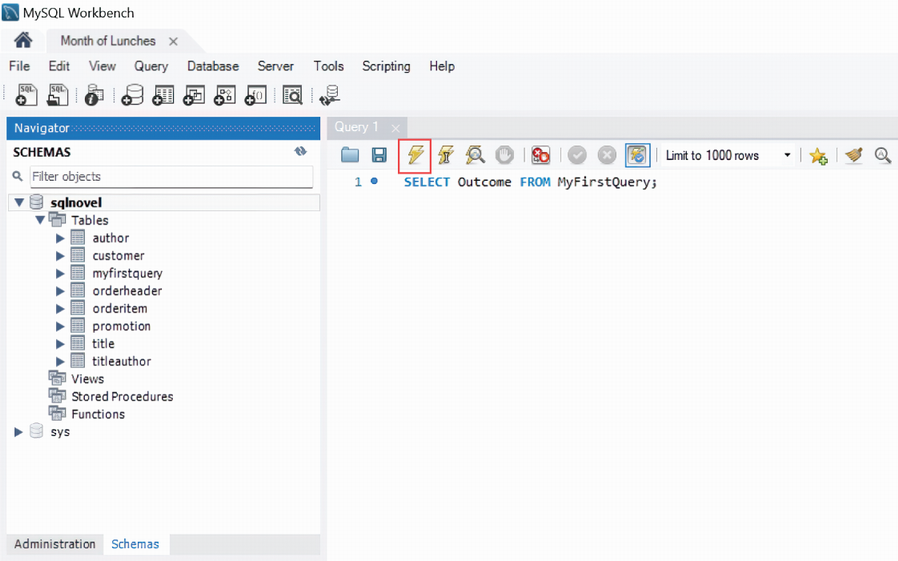
The plain lightning-bolt control executes selected SQL, providing a visible alternative to the Ctrl+Enter shortcut. section 2.3
Workbench can also help prevent broad accidental changes. Database updates and deletions happen in real time and are permanent rather than waiting for a Save command. Safe Updates is enabled by default and blocks updates that do not specify a table key value. It can be disabled through Edit > Preferences > SQL Editor, but doing so removes that protection and requires restarting Workbench. section 17.1.1
Figure 17.1 Safe Updates disabled in the Workbench Preferences dialog box
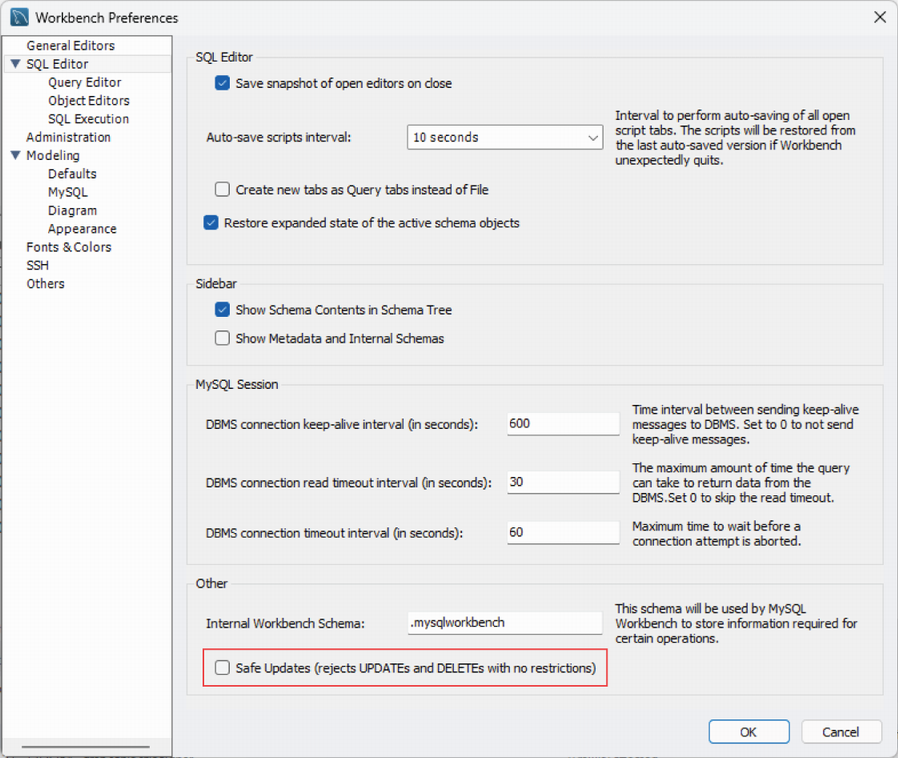
The SQL Editor preferences expose the Safe Updates setting used to guard against unintended table-wide changes. section 17.1.1