A .NET MAUI app is a platform executable application created from a .NET MAUI project template. A blank template supplies the initial solution files, leaving an app ready for development. For a first app, use the AlohaWorld project name and keep the solution name the same; separate names become more useful in complex, multiproject solutions. section 2.1.1 section 2.1.3
Visual Studio 2022 is the primary Microsoft tool for creating these apps and is the minimum required Visual Studio version. The free Community edition is sufficient. In Visual Studio, create a project, find the Multiplatform templates, select Blank .NET MAUI Template, choose a project name and location, and let the template generate the solution. Template filtering or searching for “maui” can speed up finding the right project type. section 2.1.1
Figure 2.1 Find App in the Multiplatform section on the left. This shows the available .NET MAUI templates; choose Blank .NET MAUI Template to generate a new blank app.
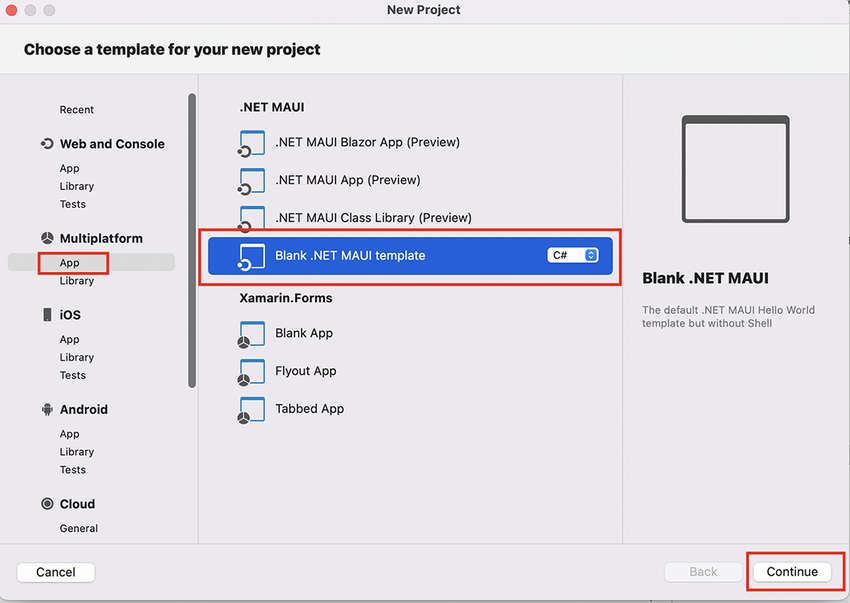
Use the template picker to locate the Blank .NET MAUI Template under Multiplatform before creating the initial app. section 2.1.1
The .NET CLI provides a tool-independent way to make the same starting point. Create and enter an empty folder, then run `dotnet new blankmaui`. A successful command creates the blank .NET MAUI template and its solution files, which can then be inspected in a file browser or terminal. section 2.1.3
Creating AlohaWorld from the command line
Create a folder named AlohaWorld and navigate into it. Run `dotnet new blankmaui`; when the terminal reports that the Blank .NET MAUI template was created successfully, the folder contains a new app ready to work on. section 2.1.3
A .NET MAUI app can use operating-system APIs through common abstractions. For stored data, `Preferences` provides key-value configuration storage, while `SecureStorage` encrypts values with a cryptographic key obtained and managed by the operating system. This distinguishes app storage from browser-constrained web storage, especially when encrypted data must remain accessible to the app. section 3.3 section 3.3
A MauiTodo app illustrates a practical secure-data design:
- Define a `TodoItem` model with an identifier, title, due date, and completion state. section 3.3
- Store the SQLite database under `FileSystem.AppDataDirectory`. section 3.3
- Obtain or create a database encryption key, save that key with `SecureStorage`, and use it in the SQLite connection string. section 3.3 section 3.3
- Load saved to-do items asynchronously, then add items from an Entry and DatePicker through an Add-button event handler. section 3.3
Figure 3.10 The MauiTodo app will use SQLite to store data. The data will be encrypted using SQLCipher. The database encryption key will be a GUID, which itself will be encrypted and stored by the OS and accessed with the .NET MAUI SecureStorage API.
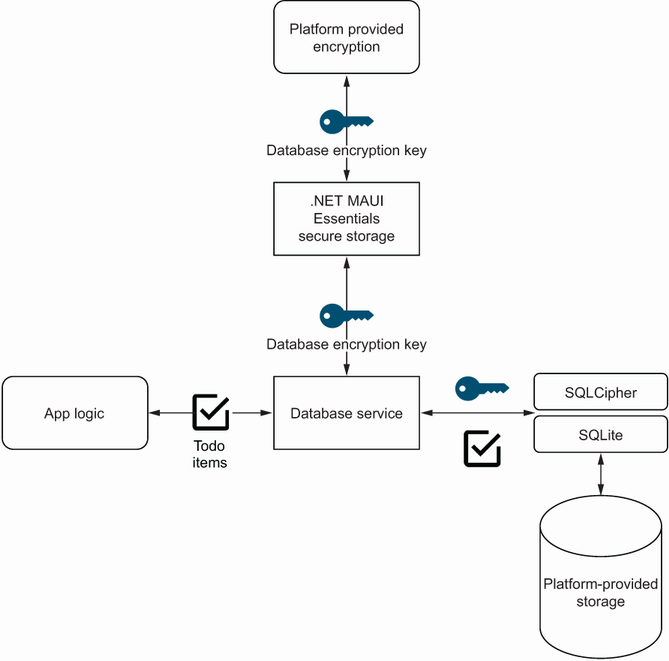
This diagram shows the layered design: SQLite data is encrypted with SQLCipher, while its GUID encryption key is protected through SecureStorage. section 3.3