A plugin conflict occurs when incompatible WordPress extensions create bugs, odd behavior, crashes, or broken site functionality. Using only necessary plugins lowers the risk. section 5.4 section 5.5
When something inexplicable happens in the WordPress dashboard, isolate the plugins before investigating more complicated causes:
- Back up the site and activate a Coming Soon page; use staging if troubleshooting could take time. section 5.5
- Open Plugins > Installed Plugins, select the main Plugin checkbox, choose Deactivate from Bulk Actions, and click Apply. section 5.5
- Recheck the original problem. If it disappears, reactivate plugins one at a time, testing after each activation. section 5.5
- Remove the plugin that makes the problem return and find another extension that provides the same function. section 5.5
Caching plugin example
If a site behaves strangely after adding WP Rocket, disable the caching plugin and test again. Caching plugins are a common source of conflicts, especially when the hosting provider already caches the site. section 5.1.2
Figure 5.9 Click this Plugin checkbox to select all of your plugins.
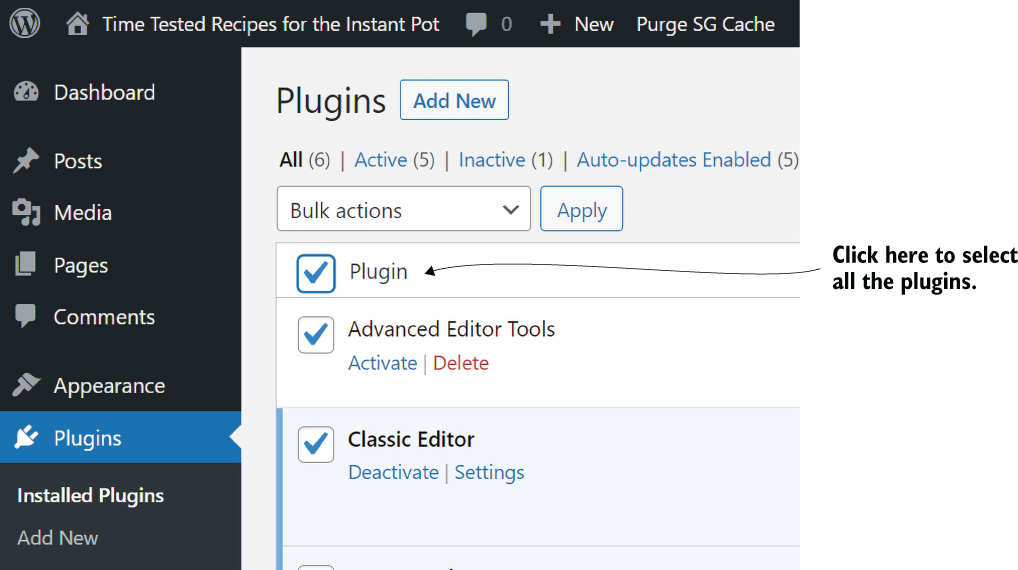
The Plugin checkbox provides the starting point for selecting every installed extension before bulk deactivation. section 5.5
