React Developer Tools inspects a running React application rather than its source code alone. Its two main tools serve different jobs: the Components inspector exposes the component tree, props, and state; the Profiler helps identify components that render too often or too slowly. Use it alongside linting and formatting, which cannot show what happens at runtime. section 4.4.1 section 4.0
Start with the Components inspector for a UI or state bug:
- Open a local React application in development mode with the browser extension installed. Chrome, Firefox, and Edge provide extension-store installations. section 4.4.2
- Find a component in the tree, select it visually, or search the tree—including with a regular expression. Adjust filters if hidden HTML nodes or component types matter to the investigation; memoized components have a visible tag. section 4.4.3
- Inspect props and supported stateful-hook values, then change a value to test its effect immediately. Use rendering highlights to investigate unexpected renders; turn to the Profiler for frequent or slow rendering. section 4.4.3 section 4.4.1
Trace a dark-mode UI
In a small application built with React context, memoization, and hooks, inspect the component tree, select the headline component, and change one of its props to see the component re-render. Inspect a stateful component to test a useState or useReducer value. A context consumer exposes its context value for inspection, but that value cannot be changed there. section 4.4.3
Figure 4.8 The initial view in the components inspector as you connect to the dark mode application. You can see the entire component tree on the left and an empty inspector on the right. Notice that several extra tools are included: the inspector toggle, a search field, a settings gear, and a small tag highlighting memoized components.
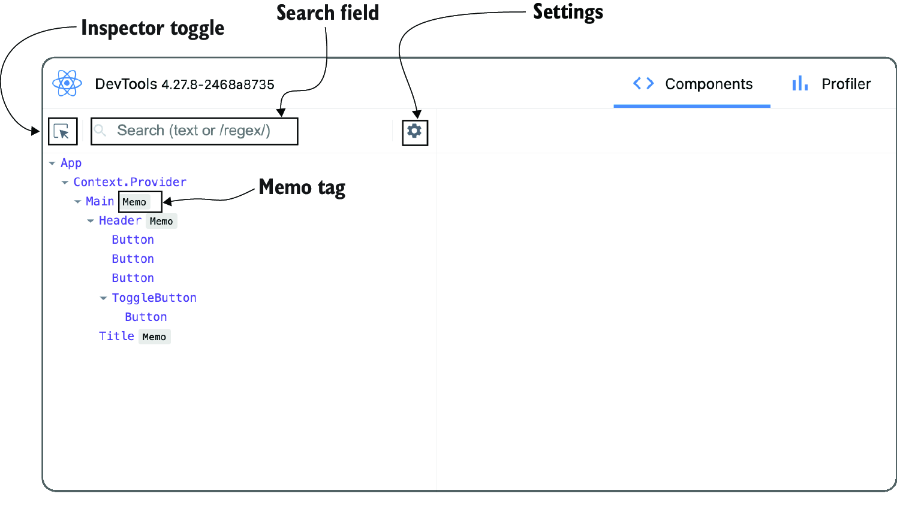
The inspector view identifies the tree, selection pane, visual selector, search field, settings, and memoization tag used in the workflow. section 4.4.3
Prefer the extension when it is available. For another browser, the standalone alternative requires a global npm installation, a separately launched `react-devtools` application, and a script loaded by the React page from its server on port 8097. The Profiler offers deeper performance analysis, but using it effectively takes more experience than the inspector workflow. section 4.4.2 section 4.5