Image resizing changes an image’s pixel dimensions so it fits its role on a website. Preparing images before uploading them can reduce unnecessary file size and support faster page loading. section 8.4
Use this practical preparation workflow:
- Identify the image’s purpose, such as a logo, ordinary page image, or full-screen visual. section 8.4
- Reduce dimensions and usually resolution from print-oriented settings before uploading to WordPress. section 8.4
- Use a dedicated photo editor rather than relying on WordPress for quality resizing or resolution changes. section 8.4
A phone photo prepared for the web
An iPhone 12 image measuring 4,032 × 3,024 pixels can be far larger than a typical web image. Resizing it before upload can reduce a roughly 31 MB PNG toward a more suitable file size. section 8.4
Figure 8.7 When you crop a low-res image, the result can be serious degradation like this pixelization.
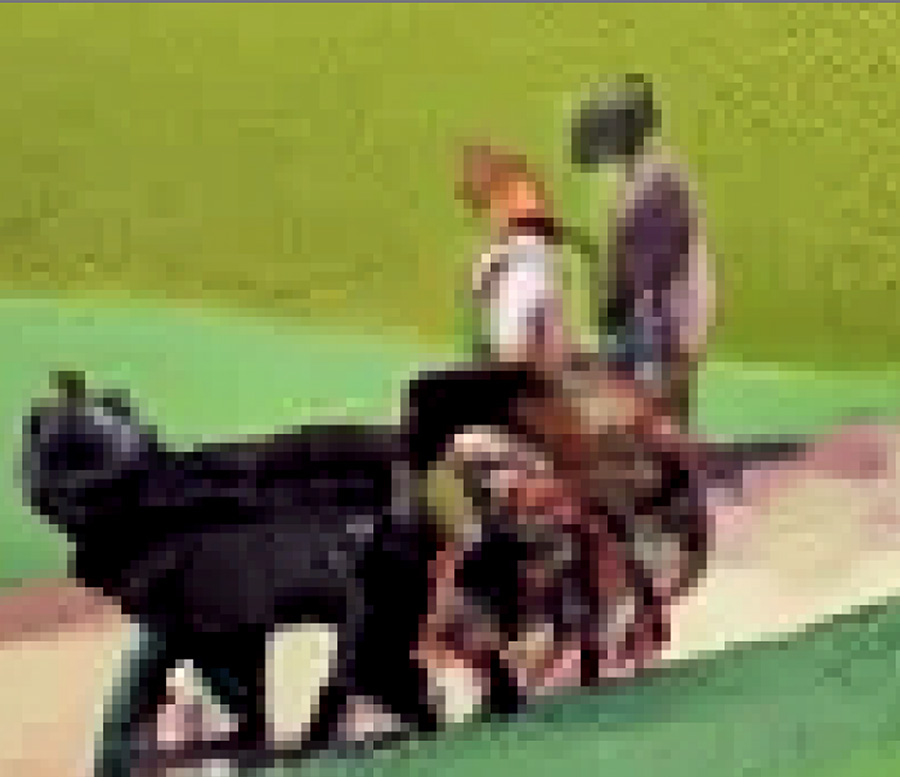
Compare how cropping a low-resolution image can produce visible pixelization. section 8.4
Figure 8.8 Change an image’s size and resolution in a module like this one.
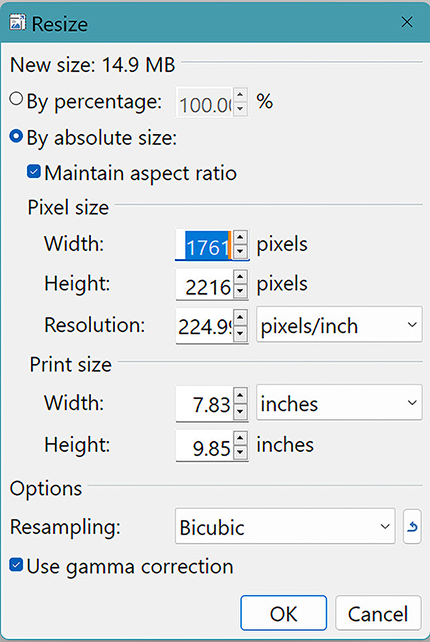
Use the visual reference to identify controls for changing image size and resolution. section 8.4
