No microcontroller board? Use the TinyGo playground at https://play.tinygo.org/ to flash a virtual one. It compiles TinyGo programs using Wasm and simulates connected LEDs, so you can try a circuit without physical components or resistors. section 12.3
To try a program:
- Select a virtual microcontroller, paste the code, and click Flash. section 12.3.1
- Watch the simulated output. On an Arduino Nano 33 IoT, its orange LED appears below the USB port. section 12.3.1
- Switch boards and flash again to check portability. The LED example does not blink on a Phytec reel board because machine.LED is not defined there. section 12.3.1
Blink the virtual board LED
Select Arduino Nano 33 IoT and flash this program: package main import ( "machine" "time" ) func main() { led := machine.LED led.Configure(machine.PinConfig{Mode: machine.PinOutput}) for { led.High() time.Sleep(time.Second / 2) led.Low() time.Sleep(time.Second / 2) } } Configuring the pin as an output lets High and Low control it. The loop keeps the simulated LED blinking. section 12.3.1
Figure 12.6 Electrical schema from the TinyGo playground using an Arduino Nano 33 IoT
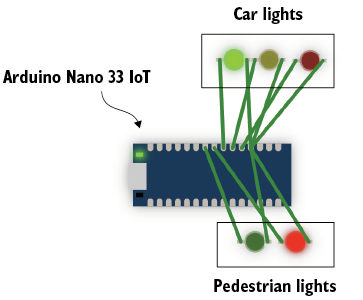
The Arduino Nano 33 IoT electrical schema shows how a playground project can extend beyond the board’s built-in LED to connected traffic-light LEDs. section 12.3.1