A video player displays video and gives visitors playback controls. Hosting videos on YouTube and embedding the player on your site can reduce server storage, bandwidth, and performance demands while providing optimized streaming and a customizable player. section 8.3
Add a YouTube video player to a WordPress page:
- Log in to YouTube, open Your Channel, select the video, choose Share, and click Embed. section 8.3.2
- Copy the generated HTML code, or save it temporarily in Notepad. section 8.3.2
- In WordPress, open Pages > All Pages, select the target page, and click where the player should appear. section 8.3.3
- Open the Text tab, paste the code, click Update or Publish, and use View Page or the Visual tab to test playback. section 8.3.3
A calmer embedded player
If the embed code includes autoplay, remove autoplay and the semicolon that follows it so visitors choose when playback begins. Test any specified size on a cellphone, tablet, and monitor. section 8.3.4
The embed uses an iframe element. Its src points to the YouTube video, width and height set pixel dimensions, title describes the video for screen readers, frameborder controls the border, and allow lists permitted features. Fixed dimensions can prevent responsive resizing. section 8.3.4
Figure 8.4 After you click the < > Embed icon shown here, you can view the HTML code that actually connects your site to the YouTube video you uploaded.

Inspect the Embed control that generates the HTML connection between a YouTube video and the site. section 8.3.2
Figure 8.6 Here in this Text tab of the Edit Page screen is the HTML code for a simple embedded video.
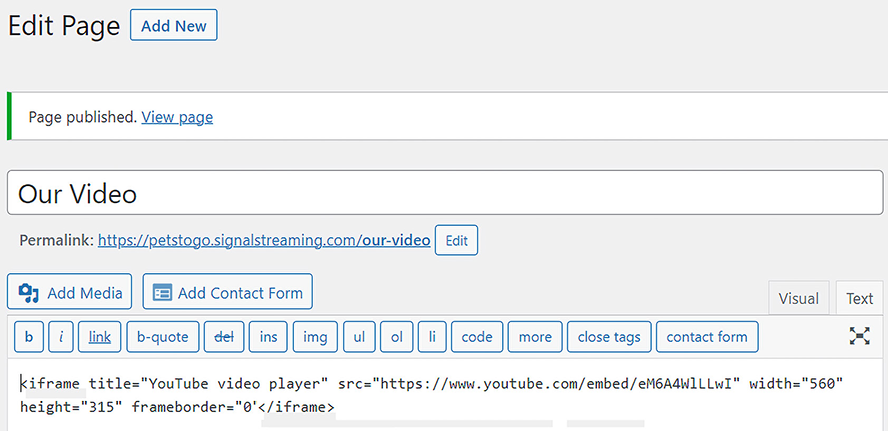
View the WordPress Text tab containing the pasted HTML for an embedded video. section 8.3.3


