A Windows publishing profile is a reusable deployment configuration for building an application and sending it to a Windows-hosted target. Visual Studio saves the settings in a .pubxml file under /Properties/PublishProfiles/, allowing multiple targets or deployment configurations for the same project. section 12.4 section 12.4.1
Create and configure a profile for the MyBGList web API:
- Install Web Deploy when using Visual Studio to deploy directly to IIS; open TCP port 8172 for inbound IIS management and Web Deploy traffic. section 12.3.3
- Right-click the project in Solution Explorer, choose Publish, select Azure, choose Azure Virtual Machine, connect an Azure account and subscription, select the Windows VM, and click Finish. section 12.4.2
- Open the profile’s full settings and configure the IIS site name, VM administrator credentials, destination URL, build configuration, framework, deployment mode, and runtime. section 12.4.3
- Validate the connection, save the profile, publish the application, and use the resulting post-deployment testing tasks to verify the release. section 12.4.3
MyBGList Azure VM profile
Configure Site name as MyBGList, enter the VM Administrator credentials, set Destination URL to https://win-01.mybglist.com, choose Release, net6.0, Framework-dependent, and win-x64, then validate and publish. section 12.4.3
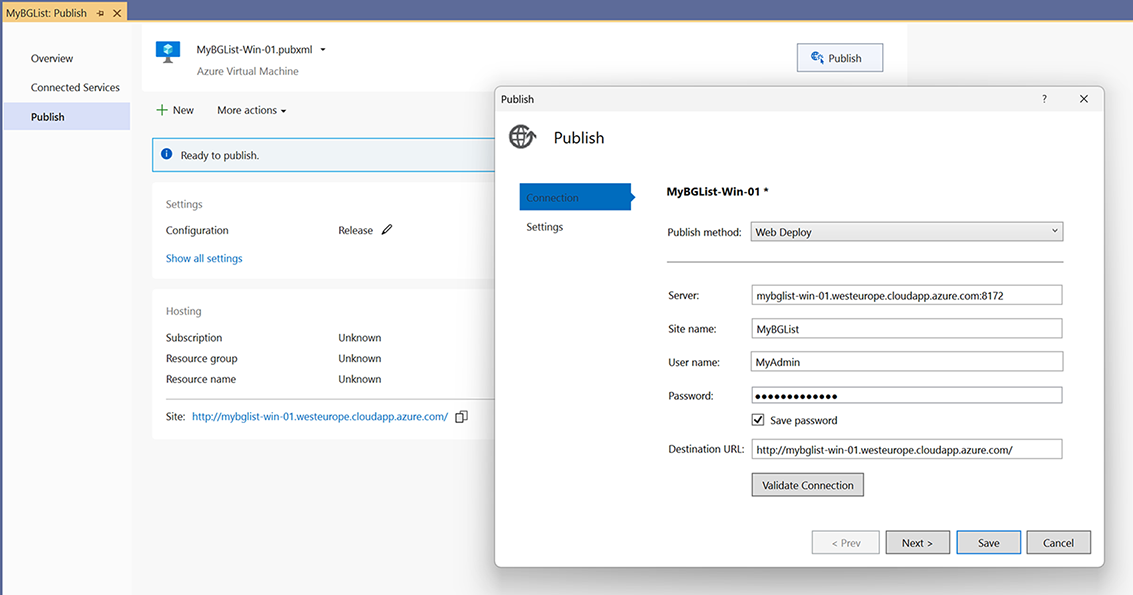
Use the settings view to inspect and edit the profile’s connection and deployment values before publishing. section 12.4.3