Alt text is a written description attached to an image. Screen readers can read it aloud for people with visual challenges, and it can alert visitors when an image cannot be displayed. It also helps search engines understand image content. section 5.8 section 8.2
Treat alt text as part of making a website welcoming and usable. Images without descriptions are identified as an accessibility and media-quality problem; accessible themes also support image descriptions alongside captions, contrast, zoom, and keyboard navigation. section 5.11 section 8.2 section 8.6.2
Add alt text in the WordPress Media Library:
- Open the Media Library and click the image you want to describe. section 5.8
- On the Edit Image screen, scroll to the Alternative Text field. section 5.8
- Write a description of the image, then save your site changes as needed. section 5.8
A practical image check
When reviewing site media, check whether each image fits the site’s purpose and story, has suitable quality and size, and includes alt text. Decorative or unsuitable media can weaken the site even when it displays correctly. section 8.2
Alt text belongs to a broader accessibility routine. Check readable color contrast and type size, provide captions for embedded video, and choose themes with features that support screen readers and visitors with different access needs. section 5.8 section 8.6.2
You’ll get a quick report on the quality of various elements of your site when you use the Lighthouse tool.
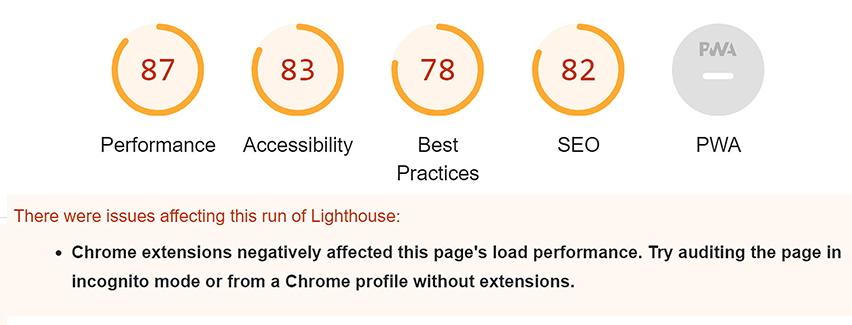
Use the Lighthouse report as a quick way to review accessibility, including screen-reader compatibility and alt text for image descriptions, then follow its recommendations. section 11.3