Aspect ratio is the shape of a rectangular visual area: the relationship of its width to its height. A landscape shape is wider than high; a portrait shape is higher than wide. It helps you choose images that fit a page, screen, or intended composition. section 6.8.1
Treat aspect ratio as a design choice, not just a technical setting. Cropping can change an image’s shape while removing distractions, reframing the scene, or placing a focal point on a rule-of-thirds grid. Outpainting instead extends an edge, adding new visual content and creating a larger canvas. section 6.8.1 section 6.8.2
Match common website image roles to useful shapes:
- Use 16:9 for full-screen backgrounds and hero images, such as 1,920 × 1,080 or 1,280 × 720 pixels. section 8.4
- Use 5:3 for a banner or header image, such as 1,600 × 600 pixels. section 8.4
- Use 3:2 for an ordinary page or blog image, such as 1,200 × 630 pixels. section 8.4
- Specify a desired shape in an AI image prompt; for example, the Midjourney parameter --ar 3:2 requests a 3:2 result. section 4.3.2
Crop for the subject, then check the shape
Move a crop grid until the focal point sits on an intersection, then compare the result. A farmhouse scene becomes clearer and more balanced after cropping, but an overly tall result may suit a portrait better than a landscape. Try further cropping until both the focal point and the shape fit the intended use. section 6.8.2 section 6.8.1
Figure 6.12 Try different shapes until you get a pleasing result.
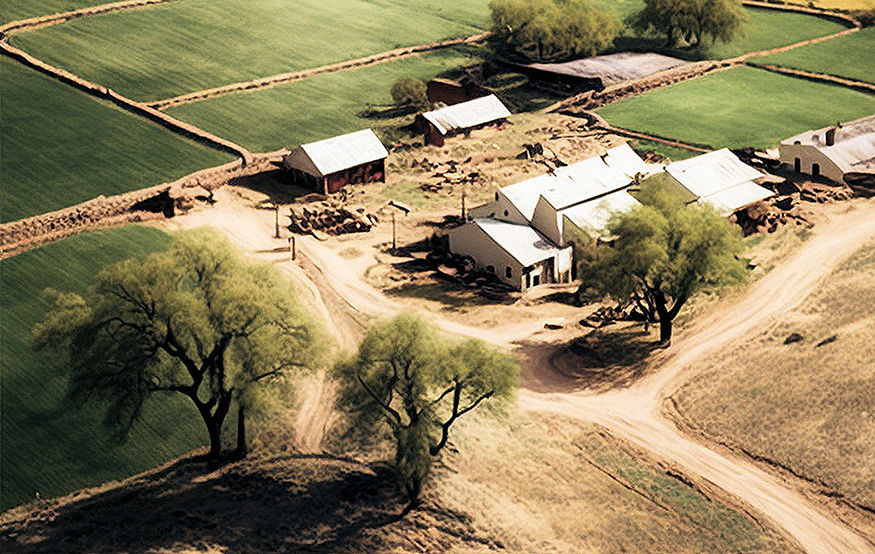
Compare crop shapes visually before choosing the version that gives the image a pleasing balance. section 6.8.2

