The Domain Name System (DNS) translates memorable domain names into IP addresses so computers can send packets to network resources. In a URL such as https://www.google.com/maps, HTTPS is the scheme, www.google.com is the authority or domain name, and /maps is the requested path. section 3.0 section 3.1.1
A device first checks its DNS cache, which temporarily stores resolved name-to-address mappings. Without a matching entry, it sends a query to its configured DNS server on port 53. DNS can use UDP or TCP; standard queries commonly use UDP, while TCP handles certain situations such as oversized responses. After a successful response, the device caches the mapping. section 3.1.2
Figure 3.2 DNS name resolution. (1) PC1 sends a DNS query to its DNS server (8.8.8.8) asking for the IP address of www.google.com. (2) The DNS server replies, informing PC1 of the IP address. (3) PC1 communicates with the web server via HTTPS (for example, to retrieve a web page).
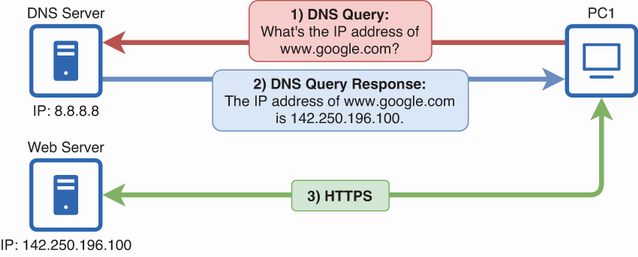
Follow the three-step exchange: a client queries its DNS server, receives the resolved address, and then accesses the destination using HTTPS. section 3.1.2
Understand the DNS namespace and its principal record types:
- Organize names hierarchically: the root domain is ., beneath it are top-level domains such as com, and beneath those are second-level domains and subdomains. A fully qualified domain name identifies its exact hierarchy; a partially qualified name contains only partial information. section 3.1.3
- Use A records for IPv4 addresses, AAAA records for IPv6 addresses, CNAME records for aliases, MX records for mail servers, NS records for authoritative DNS servers, PTR records for reverse lookups, and SOA records for administrative information. section 3.1.5
- Treat www as a conventional server name rather than a technical requirement; organizations may configure www.example.com and example.com to reach the same website. section 3.1.3
Cisco IOS devices can forward DNS traffic, operate as DNS clients, or provide DNS service to connected hosts. DNS lookup is enabled by default with ip domain lookup; disable it with no ip domain lookup. Configure a resolver with ip name-server 8.8.8.8, and specify up to six name servers for fallback. IOS can then resolve names used by commands such as ping or by an NTP configuration. section 3.2 section 3.2.1
Configure and verify DNS on Cisco IOS
R1(config)# ip name-server 8.8.8.8 R1(config)# do ping google.com Translating "google.com"... domain server (8.8.8.8) [OK] !!!!! To serve local hosts, configure ip dns server and optional static mappings: R1(config)# ip domain name jeremysitlab.com R1(config)# ip host pc2.jeremysitlab.com 10.0.0.12 R1# show hosts Default domain is jeremysitlab.com Name servers are 8.8.8.8 pc2.jeremysitlab.com ... 10.0.0.12 The default domain lets a client use ping pc2 instead of the complete hostname. show hosts displays dynamically learned and permanently configured mappings. section 3.2.1 section 3.2.2
R1# show hosts
Default domain is jeremysitlab.com
Name/address lookup uses domain service
Name servers are 8.8.8.8

Codes: UN - unknown, EX - expired, OK - OK, ?? - revalidate
       temp - temporary, perm - permanent
       NA - Not Applicable None - Not defined

Host                      Port  Flags      Age Type   Address(es)
youtube.com               None  (temp, OK)  0   IP    142.251.42.174     #1
r1.jeremysitlab.com       None  (perm, OK)  0   IP    10.0.0.1           #2
pc1.jeremysitlab.com      None  (perm, OK)  0   IP    10.0.0.11          #2
pc2.jeremysitlab.com      None  (perm, OK)  0   IP    10.0.0.12          #2
#1 Dynamically learned mapping for youtube.com
#2 Manually configured mappings for R1, PC1, and PC2
Inspect IOS host entries to distinguish dynamically learned DNS mappings from permanent manual mappings and confirm the configured domain and name server. section 3.2.2