An interactive visualization lets people change what they see—or how much they see—to explore data from different angles. It is especially useful for exploratory analysis, where data may be ongoing and changing, while explanatory visuals can be either static or interactive. Executives and other time-pressed viewers usually need key findings surfaced before they are invited to explore. section 7.2
A practical interaction pattern follows the Visual Information-Seeking Mantra:
- Overview first: establish the scope of the data and surface the key takeaways. section 7.2.1
- Zoom and filter next: let users narrow or broaden the view and remove distractions from their investigation. section 7.2.1
- Details on demand: allow users to drill into the remaining selections when they want more context. section 7.2.1
- Match guidance to the audience: unfamiliar users may need instructions, demonstrations, or recorded walkthroughs, while experienced BI users need less explanation. section 7.2.2
- Design around the user’s mental model by observing what people expect, understand, and already know how to use. section 7.2.2
A drought-risk dashboard
A dashboard for California self-supplied communities plots overall drought risk against a selectable risk factor. Users can begin with the broad scatterplot, choose a parameter, select a community or census tract, and open a map showing its location. The layered path turns a dense 51-column dataset into a guided investigation. section 7.2.1
Figure 7.6 This data set is highly complex and very large, so it is perfect for employing the visual information-seeking mantra to help make the information more digestible.
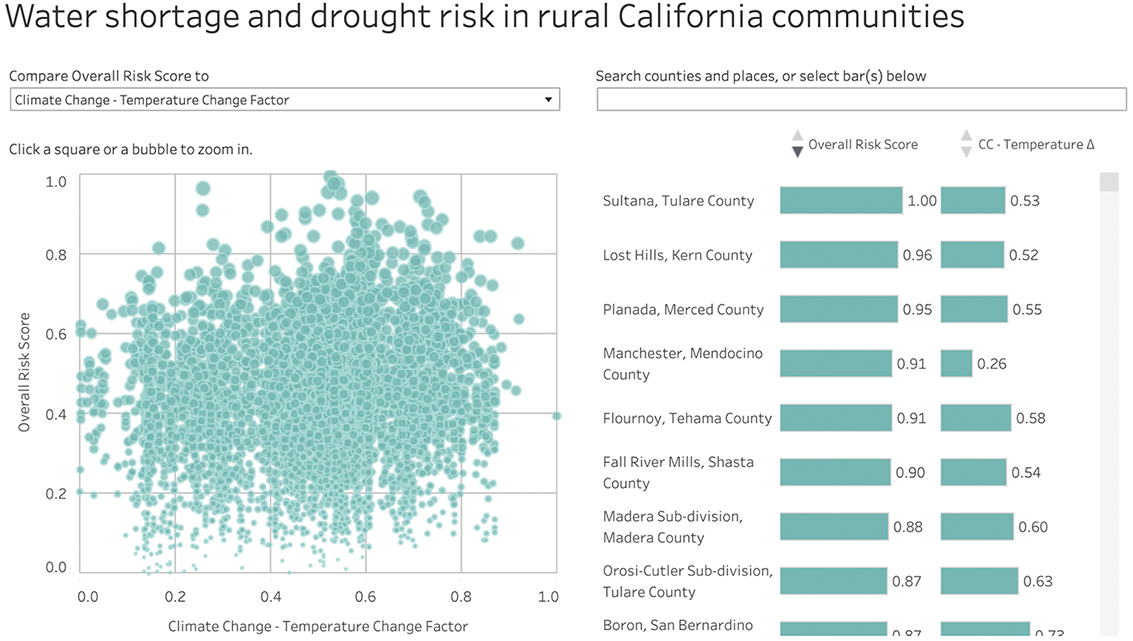
Use the dashboard figure to see how a complex, detailed dataset can support overview, filtering, and deeper exploration without presenting everything at once. section 7.2.1
Figure 7.7 The “details on demand” portion of the mantra is the most fun in this dashboard: once the user has selected a community or census tract they want to investigate, a map pops up in the lower right so they can see where it is in the state.
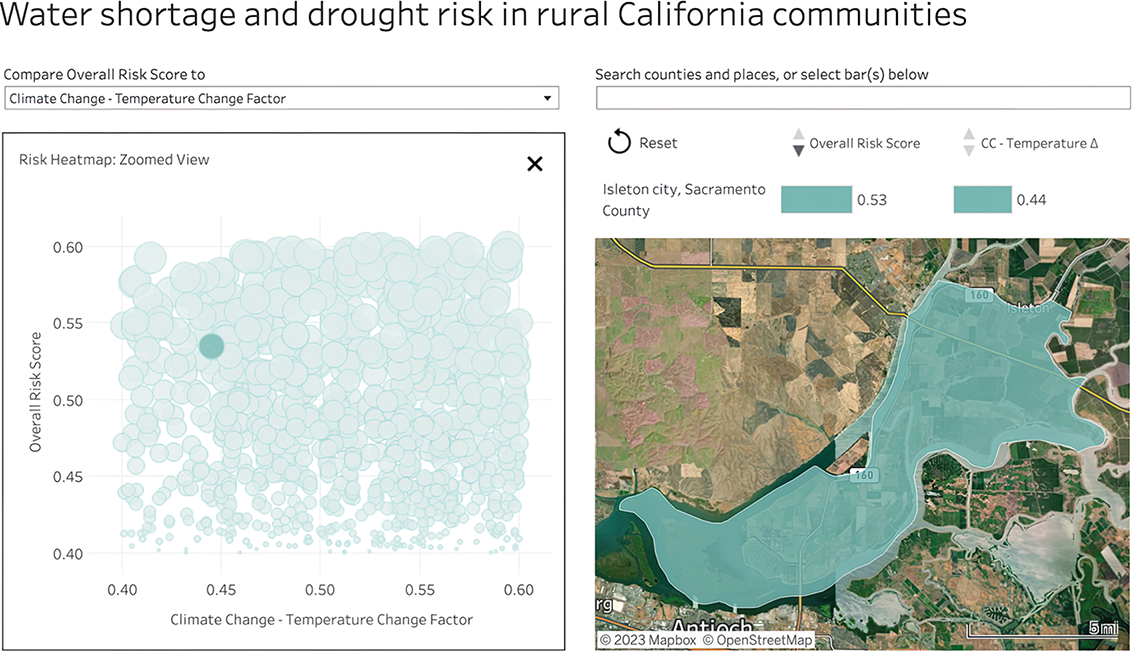
Use the map example to see how details on demand can reveal geographic context after a user selects a community or census tract. section 7.2.1