A pie chart represents a whole as slices, with each slice showing a component’s share of the total. It helps dashboard users grasp a breakdown quickly, such as sales by product, gender, or age group. section 6.1.3 section 6.5.2
Use a pie chart when the question is how one total divides across a selected dimension. Filter the data first, choose an applicable metric and dimension, group and aggregate the rows, then pass the resulting values to the chart. section 6.1.4 section 6.5.2
Sales by product
After filtering the dashboard data, grouping by product produces RoyalQuill sales of 3,100 and GripLink sales of 2,500. Plotly can render these grouped values as pie slices, with tabs allowing users to switch between Total sales and Gross margin. section 6.5.2
Choose additive measures such as Total sales or Gross margin. Do not use ratios such as Margin % or average transaction value: dimension-level ratios do not add up to 100% and require recalculating each subgroup’s numerator and denominator. section 6.5.2
Pie charts make the parts-of-a-whole relationship obvious, but comparing slice sizes accurately can be difficult. Replace the chart with a bar chart when precise comparisons matter. section 6.5.2
Figure 6.16 The pie chart from our UI mock
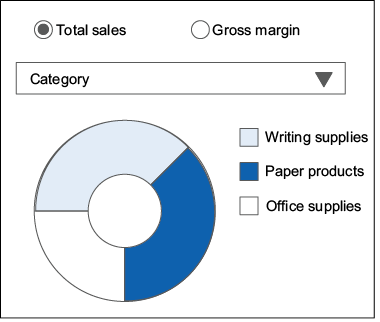
Inspect the dashboard mock to see the pie chart positioned alongside the time-series visualization and controlled by dashboard selections. section 6.5.2