Pygame is a Python module for multimedia applications and games, with built-in joystick-event support that makes it a practical starting point for joystick-controlled robots. section 7.4 section 7.2
A minimal joystick-event application follows this sequence:
- Install the Pygame Python package in the project’s virtual environment. section 7.4.1
- Initialize Pygame, create a window, and construct a Clock object. section 7.4.1
- Poll pygame.event.get inside a continuous event loop and pass each event to application logic. section 7.4 section 7.4.1
- Handle pygame.QUIT by calling pygame.quit, then regulate polling with clock.tick at a configured frame rate. section 7.4.1
Printing events at 60 frames per second
import pygame FRAME_RATE = 60 WINDOW_SIZE = [100, 100] def main(): pygame.init() screen = pygame.display.set_mode(WINDOW_SIZE) clock = pygame.time.Clock() while True: for event in pygame.event.get(): print('event detected:', event) if event.type == pygame.QUIT: pygame.quit() return clock.tick(FRAME_RATE) main() Save the script as pygame_events.py and run it in a graphical environment, locally on the desktop or remotely through VNC. Extend the event handler to respond to joystick movement and button presses. section 7.4.1 section 7.4
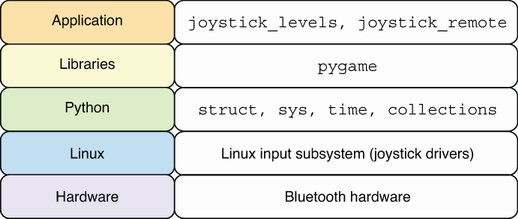
Use the software-stack diagram to place Pygame’s joystick-event handling alongside the Linux input subsystem, Bluetooth connection, and robot motor control. section 7.2