streamlit run launches a Streamlit application from a saved Python file. Run it in a terminal with the filename or path, and Streamlit opens the app in a browser. section 2.4 section 3.6.1
Use the command as part of an interactive development loop:
- Save a roughly complete Python draft with a .py extension. section 2.4
- Run streamlit run <filename> from the terminal, replacing the placeholder with the file path. section 2.4 section 3.6.1
- Test the app in the browser by entering values, clicking buttons, and checking the output. section 2.4
- After editing and saving the code, choose Rerun or Always Rerun; rerunning the command is unnecessary for ordinary source changes. section 2.4 section 3.6.1
Launching an app from another directory
Create frontend.py, then run streamlit run <path to frontend.py> when the terminal’s working directory does not contain the file. The browser initially shows a blank app; adding the unit-converter UI and selecting Rerun makes each change visible. section 3.6.1
The command starts a Streamlit server that listens on a port, such as 8502. The browser connects through a local URL, and the server executes the Python script from top to bottom to produce the visible frontend. section 4.3.1
Running a small application
Run streamlit run main.py after changing into the directory containing main.py and its .streamlit directory. A minimal quiz application can then display a question generated through a Game instance. section 9.2.6
Figure 2.4 The Streamlit development workflow
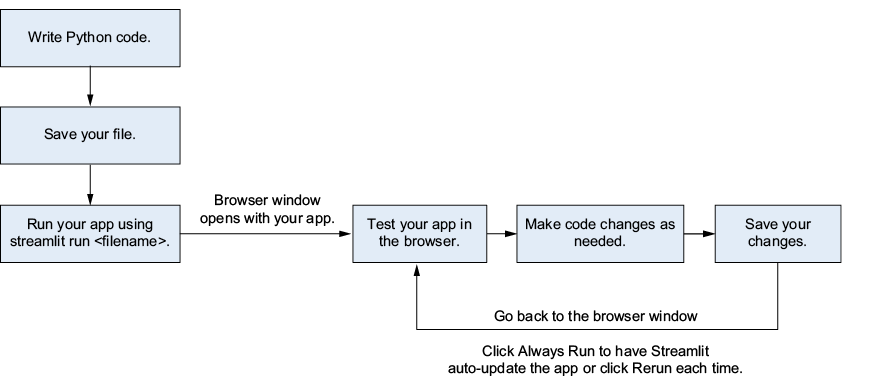
Follow the development workflow from writing and saving Python code through browser testing, rerunning, and repeating. section 2.4
