A tooltip is a temporary annotation that reveals details for a chart element without permanently consuming chart space. It is especially useful when marks show an overview but cannot display exact or complementary values directly. section 7.3 section 13.2.3
In D3, a simple SVG tooltip can be a group containing a background rectangle and text. Start it hidden, then use mouseenter to set its content, move it near the hovered mark, and fade it in. Use mouseleave to hide and move it away again. section 7.3.1 section 7.5
Figure 7.9 To create a tooltip, we first append a group element to the inner chart. In this group, we add a rectangle for the tooltip’s background and a text element. We set the opacity of the tooltip to 0. Then we attach two mouse events to the chart’s circles: "mouseenter" and "mouseleave". When the mouse enters a circle, we set the tooltip’s text, translate it above the circle, and set its opacity to 100%. When the mouse leaves, we set the opacity to 0 and move the tooltip away from the chart.
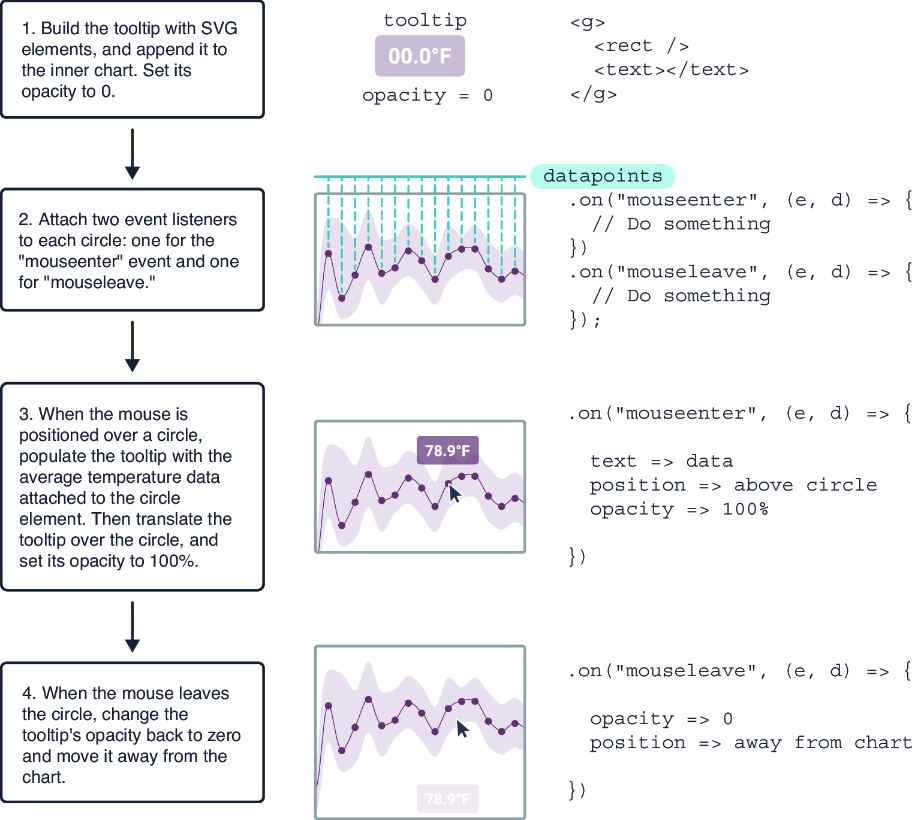
The interaction pattern is: create hidden SVG elements, populate and position them on mouseenter, then hide them on mouseleave. section 7.3.1
Choose the tooltip form to fit the information and interaction:
- Use a simple tooltip for one precise value, such as a temperature attached to a line-chart point or a country’s count on a map. section 7.3.1 section 13.2.3
- Use a compound tooltip when a chart needs several related values. A streamgraph tooltip can follow the pointer and show a year plus sales for every format. section 7.3.2
- Place a tooltip beside the visualization when it needs several lines of information; HTML elements can make that larger panel easier to style. section 11.2.3
For a pointer-following tooltip, read the horizontal mouse coordinate with d3.pointer(event), translate the tooltip to that position, convert the position back through the x scale when needed, and update the displayed data. Keep the chart’s visual order aligned with tooltip labels so people can match them quickly. section 7.3.2
Temperature point tooltip
Hovering a circle in a weekly temperature line chart formats the point’s average temperature, centers a small tooltip above the circle, and fades it in over 200 ms. Leaving the circle hides it. section 7.3.1
Plan tooltips around questions that the existing marks cannot answer clearly: identify a represented item, reveal a value estimated from a legend, or expose a detailed breakdown. Use them alongside other interactions, such as cross-highlighting, rather than asking a tooltip to solve every exploration task. section 14.6