A tooltip is a small information blurb revealed by hovering over an element—or by tapping a data point on mobile. It can add detail without crowding a visualization, but it should support understanding rather than carry the whole story. section 7.0 section 7.3.2
Put information needed to understand the main point directly in labels. Reserve tooltips for secondary context: totals, percentages, help text, or data-source details. If readers are rushed, label more rather than making them hunt for the basics. section 7.2.3
Label the answer; tooltip the context
For a survey bar chart, label each bar with the number of respondents who chose an answer. Use its tooltip for the total surveyed and the percentage represented by that bar. The result is readable at a glance, with extra context available on demand. section 7.2.3
Figure 7.9 If the main point is that X number of people gave a certain response on a survey, you could put that X in a label, and then, if you want to give more context, such as the total number of people surveyed and the percentage who’d chosen that response, you could put that secondary information in a tooltip. This way, users will get the main idea, but when they want to know a little more, then all they need to do is hover on each bar.
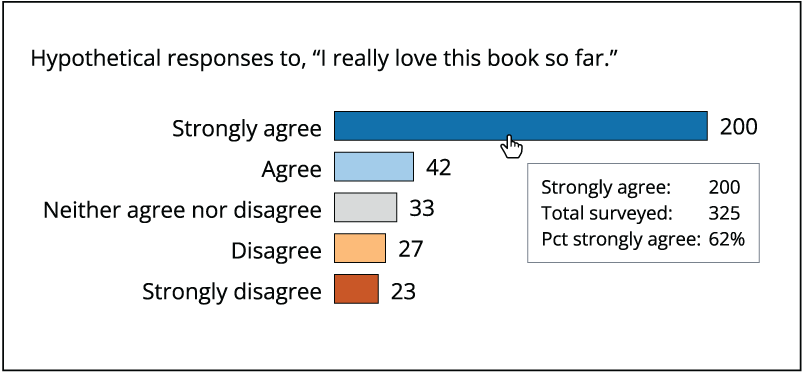
This survey-chart example separates the headline value from supporting totals and percentages, showing how a tooltip can add context without hiding the takeaway. section 7.2.3
On phones, show the tooltip when a person taps a data point. When vertically stacking multiple charts, synchronize tooltips across them so the selected position remains easy to follow. section 7.3.2