An upscaler increases an image’s scale by adding pixels that were not present in the original. Stable Diffusion images often begin at 512×512, so upscaling makes them more suitable for detailed viewing, editing, wallpapers, or printing. section 7.0 section 7.1
Use an upscaler in A1111 like this:
- Enable Hires. Fix and choose an upscaler from its dropdown. section 7.2
- Start with Latent for a dependable default, R-ESRGAN 4x+ for photorealistic work, or R-ESRGAN 4x+ Anime6B for anime-style images. section 7.2
- Adjust denoising strength when img2img upscaling changes the image too dramatically; lower values preserve more of the original. section 7.3.2
- Try a different checkpoint when you want the enlarged image to adopt another visual style. section 7.3.2
Doubling latent resolution in ComfyUI
Add Node > latent > Upscale Latent By, keep the upscale method at nearest-exact, set scale_by to 2.0, and connect the original samples output to the node input. section 8.3.1
Figure 7.3 Selecting Hires. fix and viewing the configuration options.
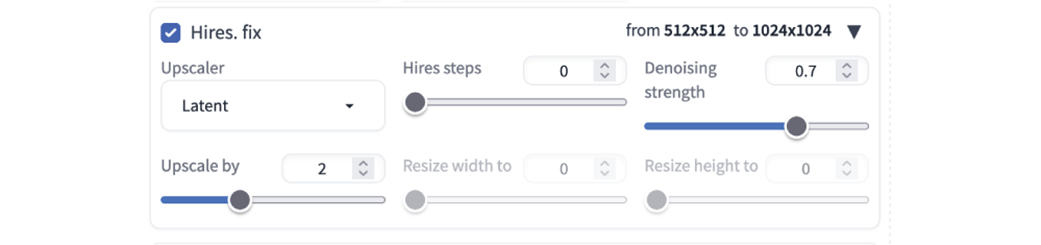
Inspect the Hires. Fix controls before choosing an upscaler and tuning its settings. section 7.2
Figure 8.16 The Upscale Latent By node.

Inspect the ComfyUI Upscale Latent By node used to double latent resolution. section 8.3.1