A virtual environment gives a Python project its own packages. Think of it as a separate toolbox: your chatbot can use one version of a package while another project uses a different version, without the two interfering. Create one before installing packages for a project. section 6.1
Figure 6.1 Without virtual environments (right), all projects share the same packages, which can cause version conflicts. With virtual environments (left), each project gets its own isolated set of packages, keeping everything clean and conflict-free.
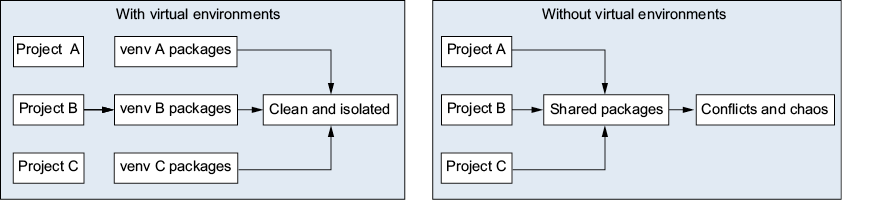
Compare separate project toolboxes with one shared set of packages to see where version conflicts arise. section 6.1
Create and use an environment
From your project folder, run `python3.13 -m venv .venv`, then `source .venv/bin/activate` on macOS. The `(.venv)` prompt prefix shows that it is active. Now `pip install requests` installs the package into that environment. Run `deactivate` when you are done. Creating `.venv` may produce no output; check that the folder exists before trying to activate it. section 6.2.2 section 6.3.1 section 6.6
The first `venv` in the creation command names Python’s built-in module; `.venv` names the folder it creates. On macOS, that folder holds the environment’s Python and pip in `bin/` and installed packages under `lib/`. Creating the folder does not activate it: until activation, the terminal still uses the system-wide Python installation. section 6.2.3 section 6.2.4 section 6.3
Keep the setup reproducible and check it when something goes wrong:
- Run `pip freeze > requirements.txt` to record installed packages and exact versions. Share that file, not `.venv`; after creating and activating a new environment, run `pip install -r requirements.txt` to restore them. section 6.7
- If Python reports `ModuleNotFoundError` for Streamlit, check for `(.venv)` in the prompt, then check `which python3` and whether Streamlit appears in `python3 -m pip list`. You may be running a different environment from the one where you installed it. section 15.1.5