concept text in category ios

This is an excerpt from Manning's book Hello Swift!: iOS app programming for kids and other beginners.
Easy to read— Always try to present your text in an easy-to-read, legible font. Also, make sure that your font color contrasts with whatever is behind the text of your message so that it’s more readable.
1. Build an app that outputs text.

This is an excerpt from Manning's book Anyone Can Create an App: Beginning iPhone and iPad programming.
Hello Button— This app will allow you to press a button and change the text of a label within the app. Textbox— This app will let you type something into a text box, and then the app will print out the text on the screen.
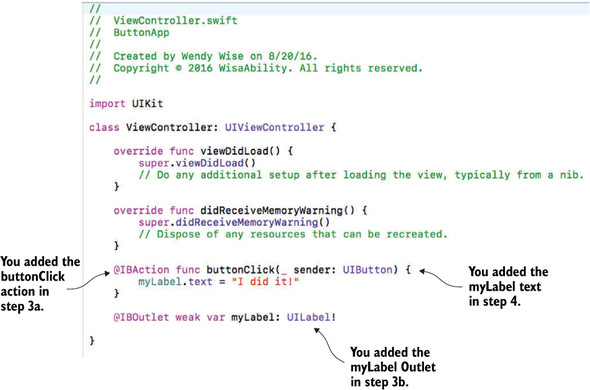
Add code to change the text on the label when the button is clicked, and run the app to test it.

This is an excerpt from Manning's book iOS 7 in Action.
Within this method you first grab the selected index path from your table view
. You use the index path’s row to retrieve the selected account from the accounts array
. Next, you get a reference to the stream view controller
, and then you set the title of the view to the text used in the selected table view cell
, which is the user’s account name. Last, you set the account property on the stream view to the account that was selected
.

This is an excerpt from Manning's book iOS 4 in Action: Developing iPhone and iPad Apps.
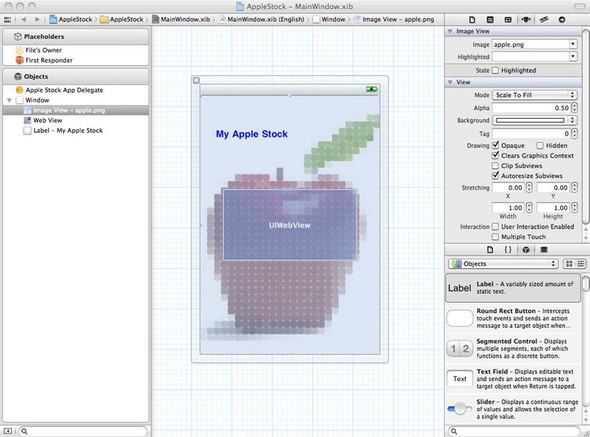
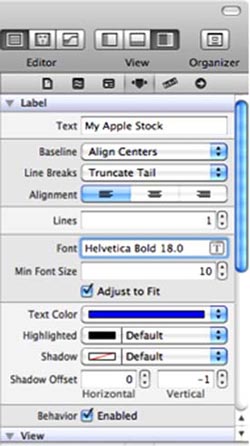
Let’s spend some time here to make the graphic interface look pretty. Interface Builder is an editor that focuses primarily on user interface design, so it makes sense that you can do some simple manipulation of your objects graphically. For example, if you want to change the text of your label, double-click it; then you’re given the option to fill in your own text. To adjust the font color and the font size of the label, navigate to the Attributes tab under the Inspector pane on the top of the utility view, as show in figure 3.16.
Double-click the label, and type My Apple Stock. Don’t forget to press Enter to finish the change. When you manipulated the label graphically, you changed the text to My Apple Stock for reasons that will become obvious shortly. You can see that this change has already been made in the label’s attributes. You can set a lot of other properties via this single window, with no programming required.
This chapter will kick off our look at the SDK toolkit with a discussion of data, which will describe many of the ways you can deal with information generally (and text specifically). We’ve broken this into a couple of broad categories. First, we’ll look at the ways users can input data into your program, focusing on actions and preferences. Second, we’ll examine ways that you can store and retrieve internal data using files.

This is an excerpt from Manning's book iPhone and iPad in Action: Introduction to SDK Development.
The label is a simple class that allows you to print text on the screen. Figure 3.2 shows what the label (and the rest of the program) looks like.
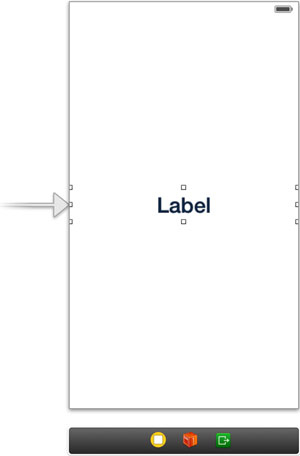
Interface Builder is fundamentally a user interface design program, so it makes sense that you can do some simple manipulation of your objects graphically. For example, if you want to change the text of your label, double-click it; you’re given the option to fill in your own text. You can similarly move and resize most objects using the main window.
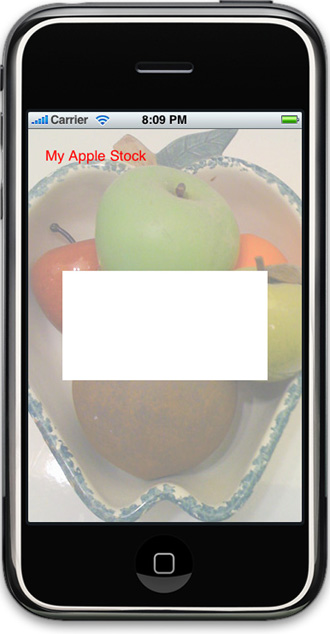
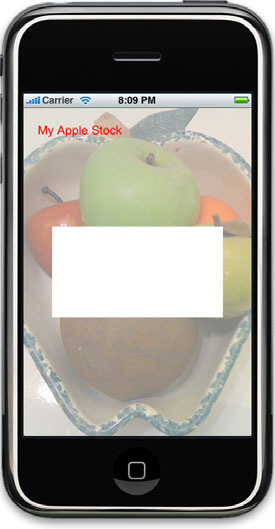
When you manipulated the label graphically, you changed the text to “My Apple Stock” for reasons that will become obvious shortly. You can see that this change has already been made in the label’s attributes. You can set a lot of other properties via this single window, with no programming required.

This is an excerpt from Manning's book iPhone in Action: Introduction to Web and SDK Development.
There’s a further similarity between the two programs: each one features on its front page an editable “text view.” This view can be used to display text, and can be edited using the iPhone’s built-in keyboard.
Now that we’ve finished with all the basics of Canvas, we can move on to a topic that will help our graphical web apps look even more like the native iPhone apps: using images and text.
As you’ll see, images are well supported in Canvas. There are a variety of ways to pull in pictures to really rev up your Canvas application. Unfortunately, the same can’t be said for text.
Listing 19.6. Outputting text in Quartz
CGContextSelectFont (ctx, "Helvetica",20,kCGEncodingMacRoman); CGContextSetTextDrawingMode(ctx, kCGTextFill); CGAffineTransform flip = CGAffineTransformMake(1,0,0,-1,0,0); CGContextSetTextMatrix(ctx, flip); CGContextShowTextAtPoint(ctx, 20, 85, "A Quartz Example", 16);