Azure Logic Apps provides customizable, low-code workflows that connect Microsoft and non-Microsoft systems. In Microsoft Defender for Cloud, workflow automation uses Logic Apps to respond to security alerts, recommendations, and regulatory compliance standards. section 7.11 section 7.4
Use Logic Apps with Defender for Cloud to:
- Trigger an existing workflow manually during alert investigation or configure it to run programmatically. section 7.3.2
- Automate responses to security alerts, recommendations, and regulatory compliance conditions. section 7.4 section 7.4.1
- Integrate alert handling with IT service management, messaging, or other organizational systems. section 7.11 section 7.3.2
Block brute-force attacks on virtual machines
Create a Defender for Cloud workflow automation that watches for the Failed SSH Brute-Force Attack alert and invokes a Logic App to block originating IP addresses. In the Azure portal, open Microsoft Defender for Cloud, select Workflow Automation, and choose +Add Workflow Automation. Enter a name and description, select the subscription and resource group, choose Security Alert, select the matching alert and severities, choose the Logic App subscription and workflow, and click Create. Require Security Admin or Contributor access to the resource group, plus Logic App Operator permissions to read or trigger workflows and Logic App Contributor permissions to create or modify them. Analyze community workflows and customize them when necessary before deployment. section 7.4.1 section 7.4
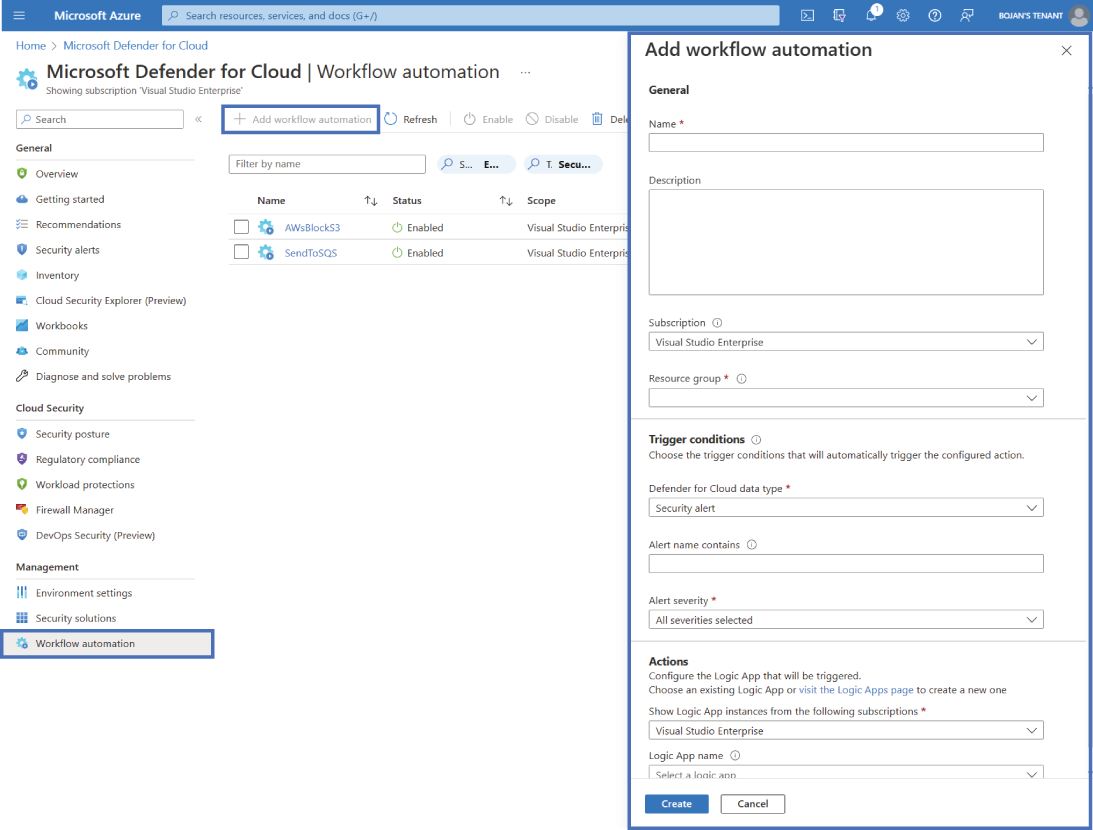
Use the Workflow Automation dashboard view to locate the configuration sequence for Defender for Cloud triggers and Logic App actions. section 7.4.1